 FluxTime
Time distribution
See how many hours each category got this week, month or year, and how that changed from the period before.
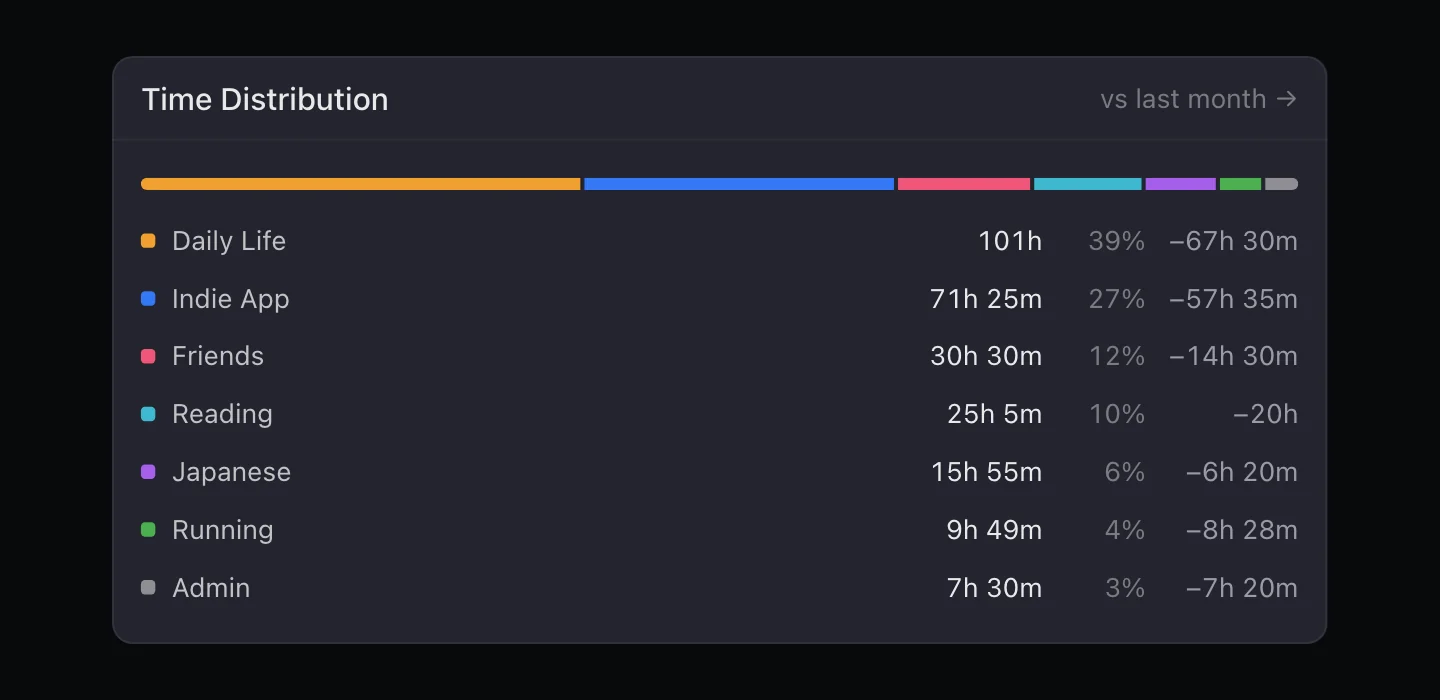
Time distribution answers the first question of any review: where did my time go? It splits the period by your top-level categories, with each one's hours, its share of the total, and the change from the period before.
Open it
Open Review. Time distribution is on the Overview. Open it to see the details below.
Choose the period
Switch between week, month and year, and step back through earlier periods with the arrows. Each category's change is compared with the period just before: this week against last week, this month against last month.
Increases show in green and decreases in gray. A decrease is not marked as bad. Less time on work in a holiday week is often the point.
Look inside a category
Expand a category to see its subcategories and the goals filed under it, each with its own hours.
Where the numbers come from
Time distribution counts the journal entries in the period. Each entry's duration is the gap until the next entry, so the totals match what you logged in Journal, not what you planned in Today.
The totals are only as complete as your journal. If a day looks short, open it in Journal and fill in what you missed. Journal Status in Review shows how many days you recorded.
Go further with Flux Pro
Flux Pro. Category Trends charts one category over recent periods, so you can see a slow drift that a single week hides. Weekly Balance compares each week with a target range you set for every top-level category, and gives it a score out of 100.
Ask for a chart Review doesn't have
When the built-in views don't answer your question, like Which weekdays get the most deep work?, ask Flux AI. It answers with a chart from your journal, and Add to Review keeps it under Review → Insights.
Learn more
- Time tracking: everything Review can tell you about your time.
- How to do a time audit in 7 days: use a week of logging to see where time goes.
- How to do a weekly review in 30 minutes: turn the numbers into next week's plan.
Last updated