 FluxTime
Today
Plan the day on one timeline with your tasks, events, reminders and time blocks, and keep unscheduled tasks within reach.
Today is where the plan meets the clock. Tasks, calendar events, reminders and time blocks share one timeline, and the time you log in Journal shows up behind them, so you can see the plan and what really happened on the same grid.
The layout
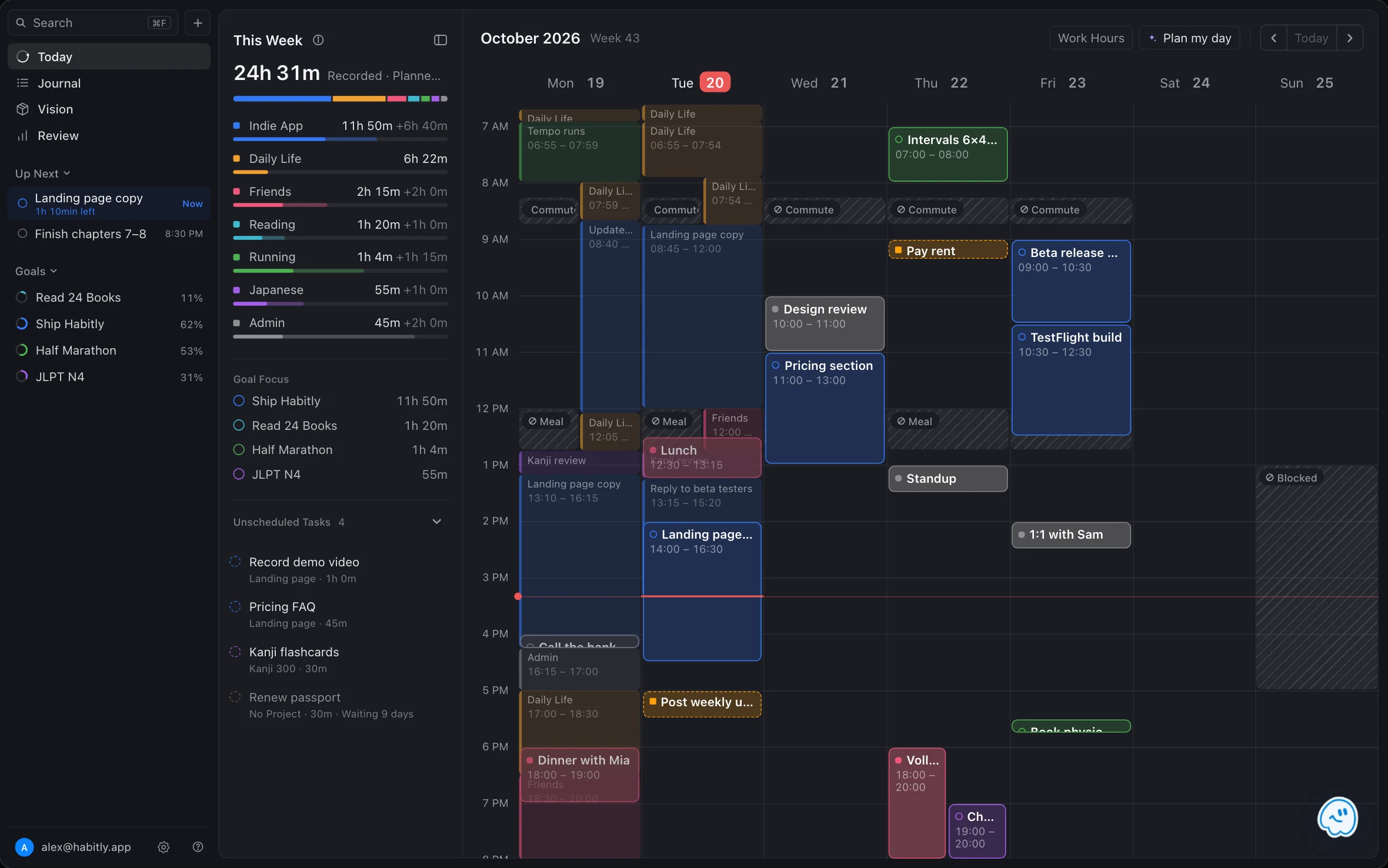
On Mac and iPad, Today shows the full week in three columns:
- Sidebar: the app's pages, then Up Next and your goals.
- Panel: This Week, Goal Focus and the Unscheduled tray.
- Calendar: the week, with Work Hours, Plan my day and the day arrows at the top.
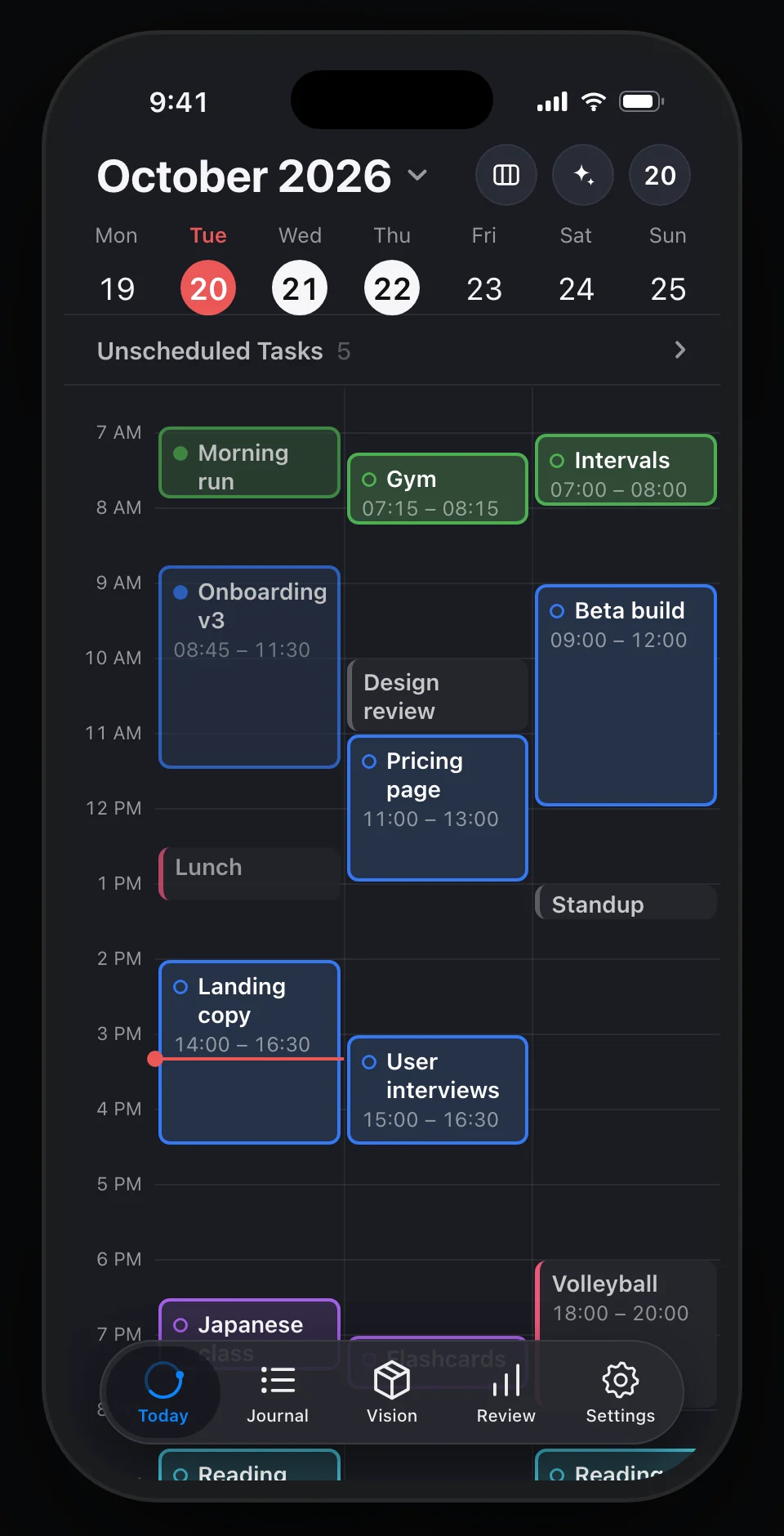
On iPhone, the timeline shows one to three days at a time, with the Unscheduled tray above it. Move between days with the arrows in the date header, or with ⌘ ← and ⌘ → on a keyboard.
Add something to the timeline
Drag across an empty stretch of the timeline and choose what it becomes: a Task, an Event, a Reminder or a Block. The time you dragged is already filled in. Concepts explains the difference between the four.
To change an item, drag it to another time or day, or pull its top or bottom edge to resize it.
Unscheduled tray
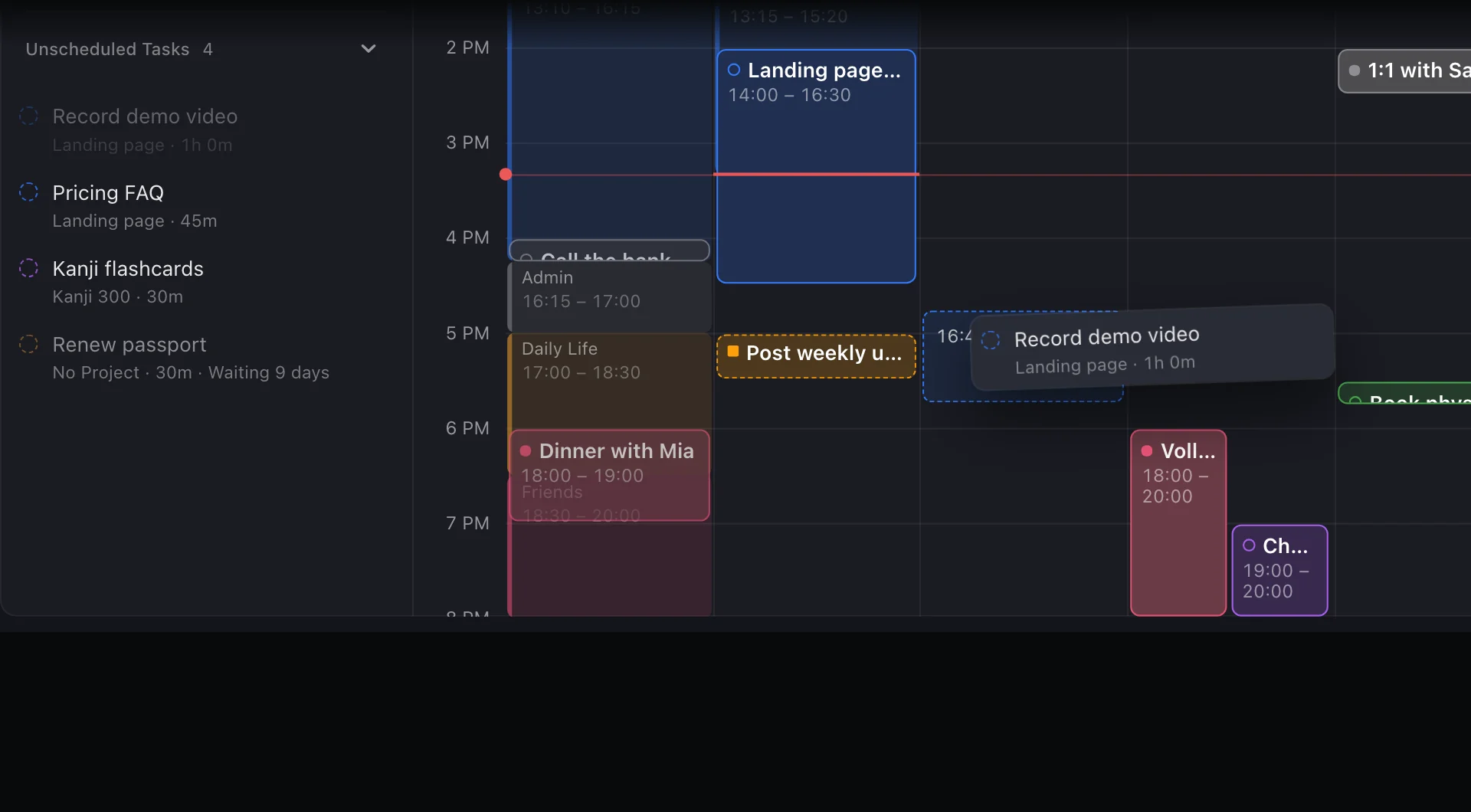
Todos without a time wait in the Unscheduled tray, each with its project and estimate, so you can see what fits a 30-minute gap.
- Schedule a task: drag it from the tray onto the timeline.
- Unschedule a task: drag its block back into the tray.
A task that has waited in the tray for a week fades and shows how many days it has been waiting, so you can schedule it or let it go.
Up Next
Up Next keeps the next few things in view. The current item shows how much time is left on it; the ones after it show when they start. Below them, every goal has a progress ring, so today's work stays connected to what it is for.
This Week
This Week adds up the time you have recorded and the time still planned this week, category by category, and compares it with your average week. When one category is about to crowd out the rest, you see it before the week is over. Goal Focus shows which goals got your hours.
Plan and reality on one grid
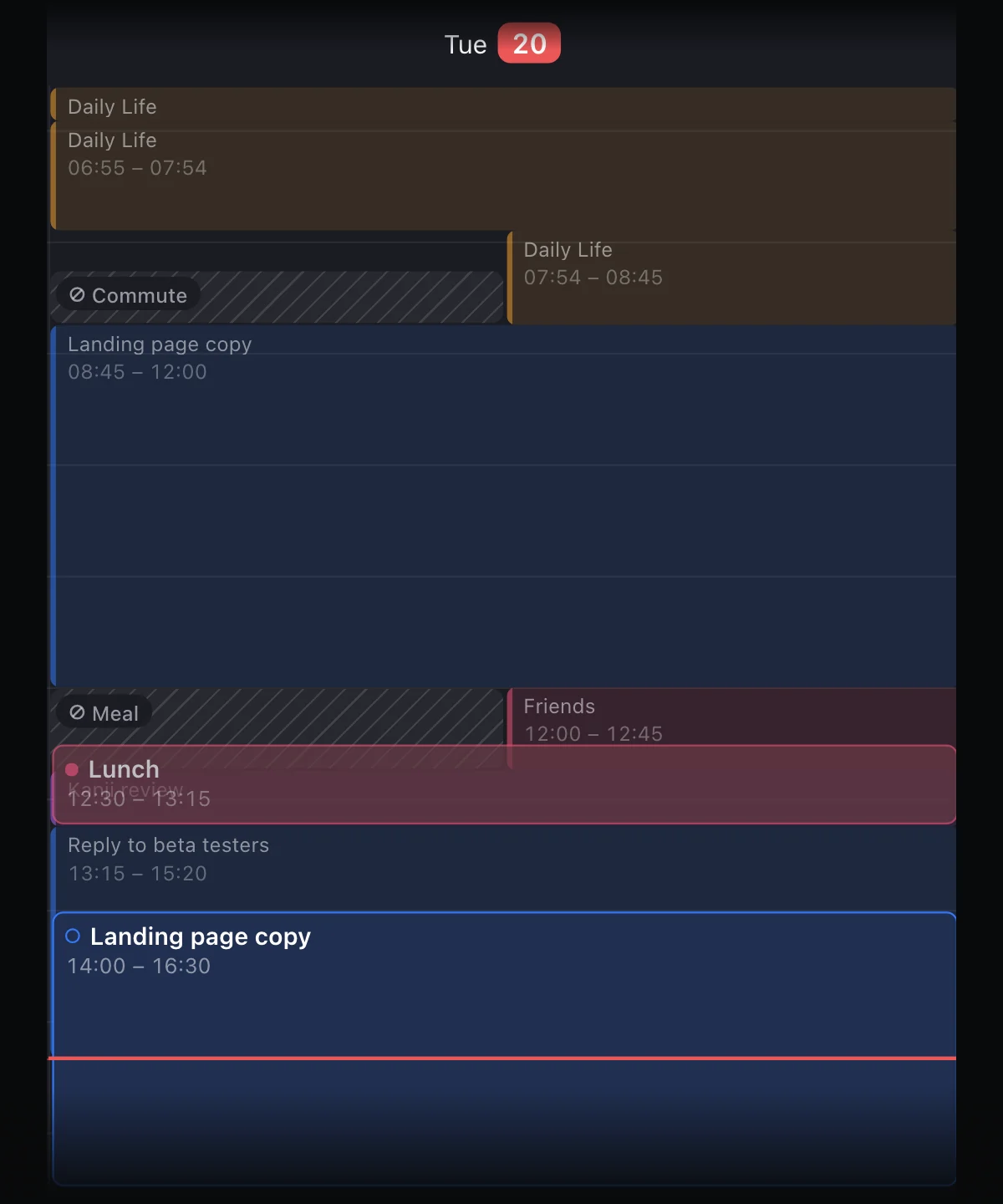
Everything you log in Journal also appears on the Today calendar, as a soft wash in its category color behind the planned items. Before the red current-time line you see what you recorded; after it, only the plan. Where a recorded stretch and a time block overlap, they sit side by side.
Related
- Time blocks to protect meals, commutes and focus time, and Work Hours to set the edges of your day.
- Plan my day to fit open tasks into free time automatically.
- Journal entries for the recorded side of the grid.
Learn more
- Daily planner: why one timeline for tasks, events and goals.
- Time blocking: the method behind giving every task a slot.
Last updated