 FluxTime
Log your day without starting a timer.
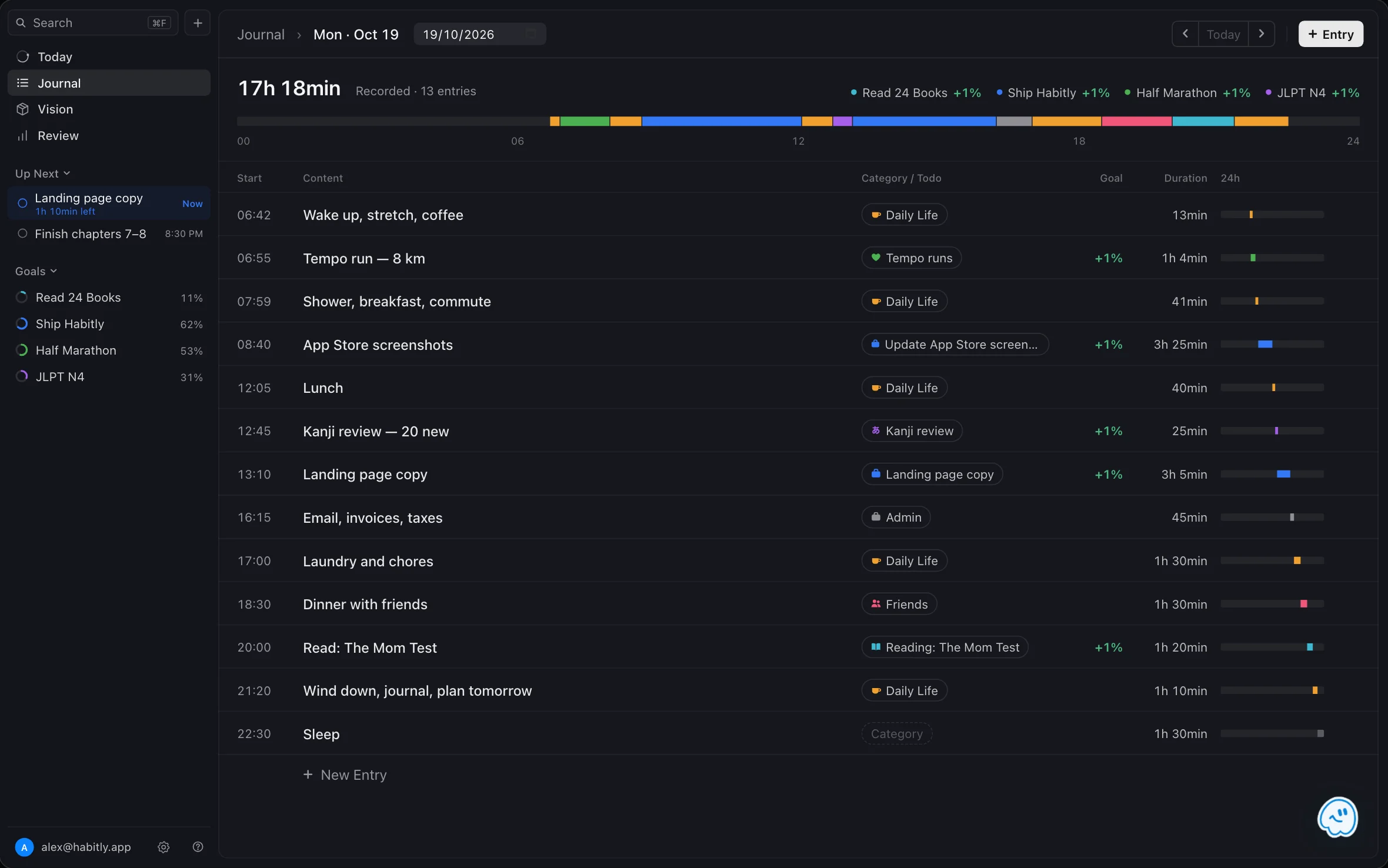
A time log is a running record of what you did and when. In FluxTime you keep it in Journal: write one line when you switch to something new, and the entry before it ends right there. No stopwatch to start, and nothing to forget to stop.
One line per switch/Fix times after the fact/Log from Mac or Apple Watch
What is a time log?
A time log records what you did and when, as the day happens rather than from memory at night. Most time trackers ask you to start a timer and remember to stop it. A log only asks for a line when something changes, and the durations fall out of the gaps between entries.
One line per switch
Write what you're starting. The time is filled in for you.
02 / CLOSEThe last entry ends itself
Each entry runs until the next one begins, so two entries make one time block.
03 / FIXCorrect times later
Forgot to log? Type the time it really started.
04 / SORTMark where it went
Give each block a category or a todo, and it counts toward your goals.
Every entry runs until the next one.
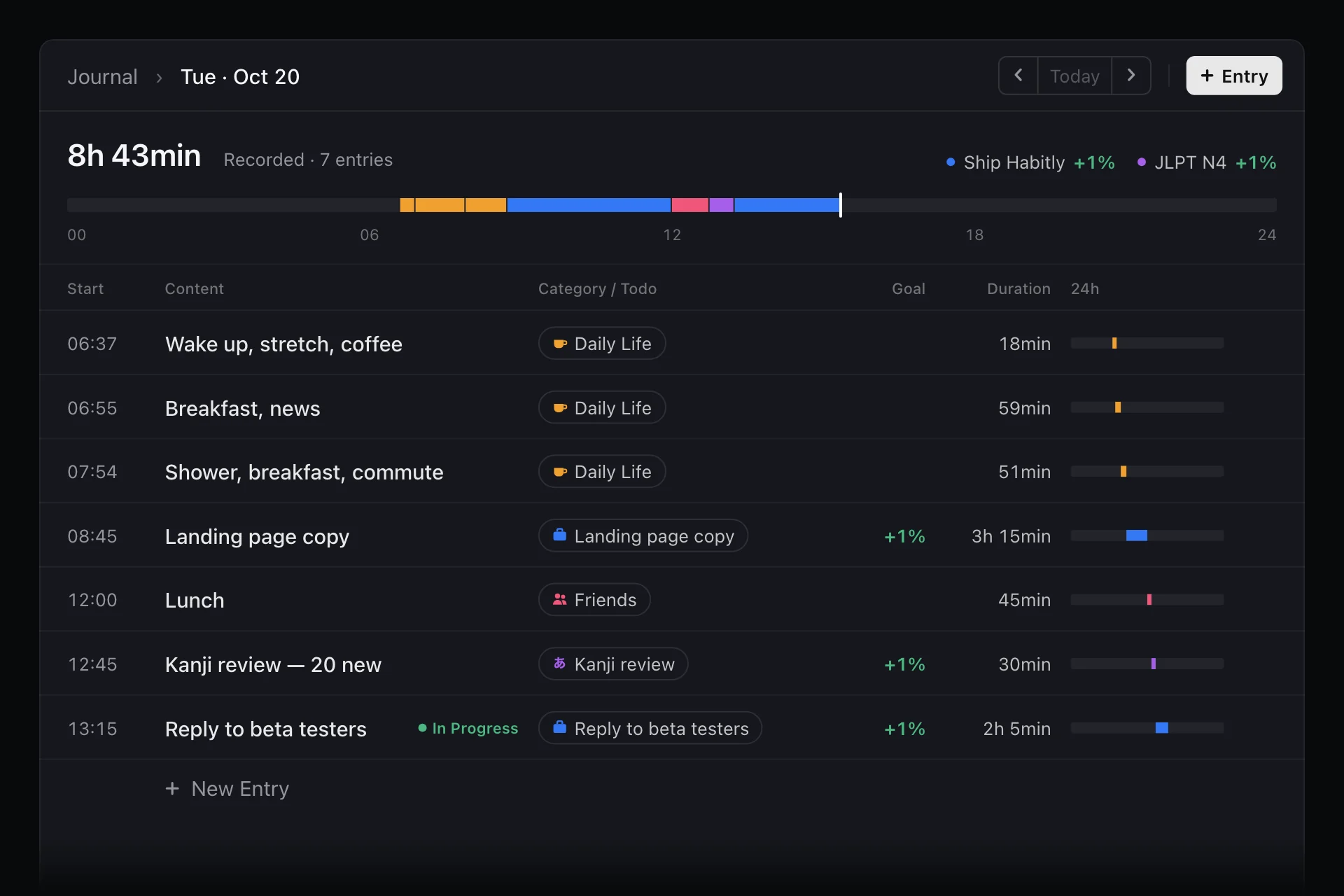
Add a new entry and write what you're doing. FluxTime stamps the time, and the entry stays In Progress until you add the next one. Then it closes, and its duration is the time between the two. The band at the top shows the whole day, with a line at the current time.
Recorded, not estimated
The total at the top adds up the time you actually logged that day, entry by entry.
Goal progress by the day
Entries linked to a goal's todos show how far that goal moved today, right beside the total.
Fill in any day
Step back to an earlier day to add what you missed or tidy up the entries you made.
Forgot to log? Type the time it really started.
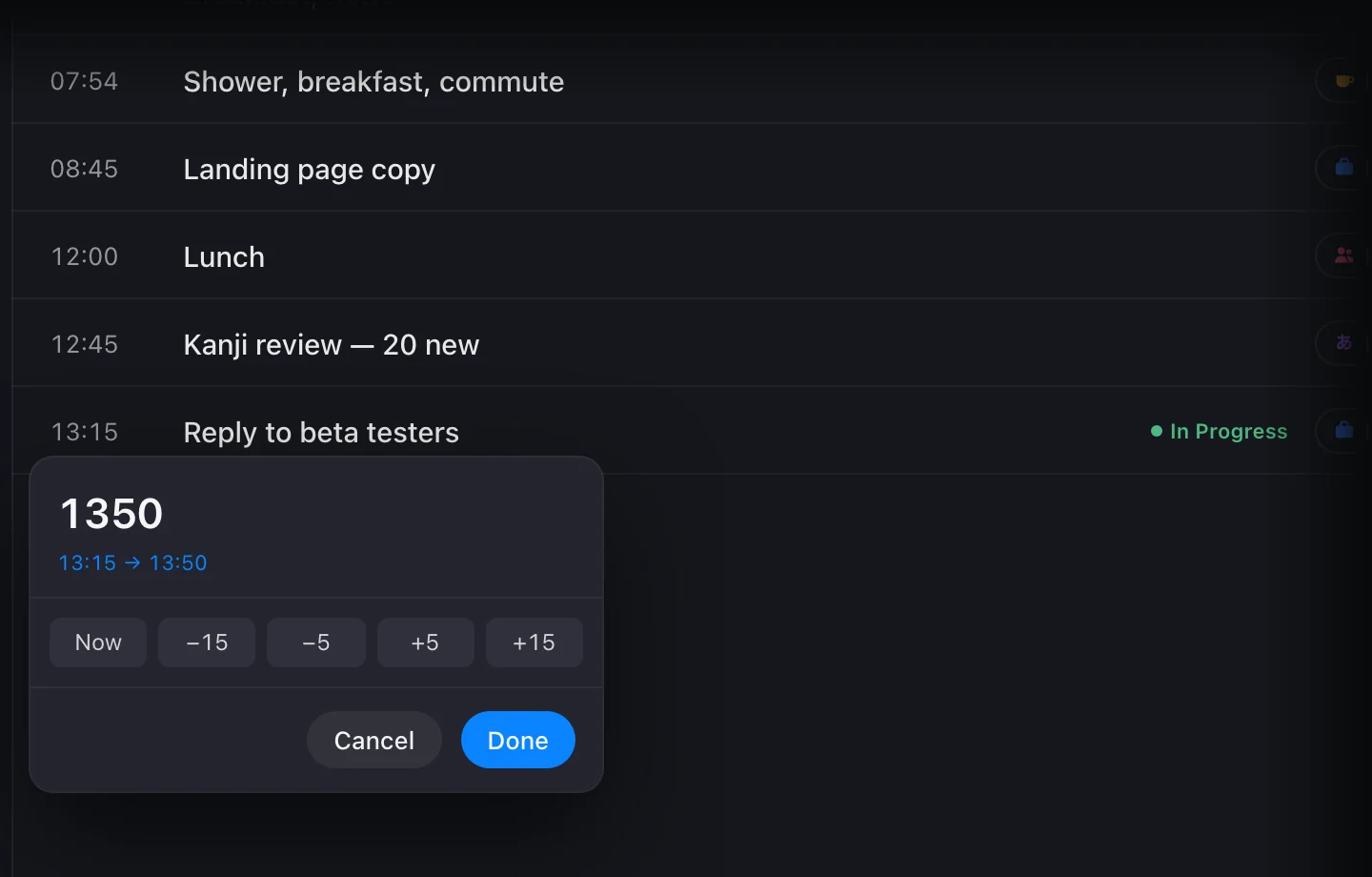
Logging late is normal. Change the entry's start time to when it really began, and the entry before it adjusts to match, because one entry always ends where the next begins. On Mac you type the time: FluxTime reads 1845, 9:30 or 6:45pm and shows the change before you confirm it. On iPhone and iPad you pick it on a time wheel.
- 01Type 1350 and it reads 13:50
- 02Or step by −15, −5, +5 or +15 minutes, or jump to Now
- 03The arrow keys step the hour or minute, and Return confirms
Mark where each block of time went.
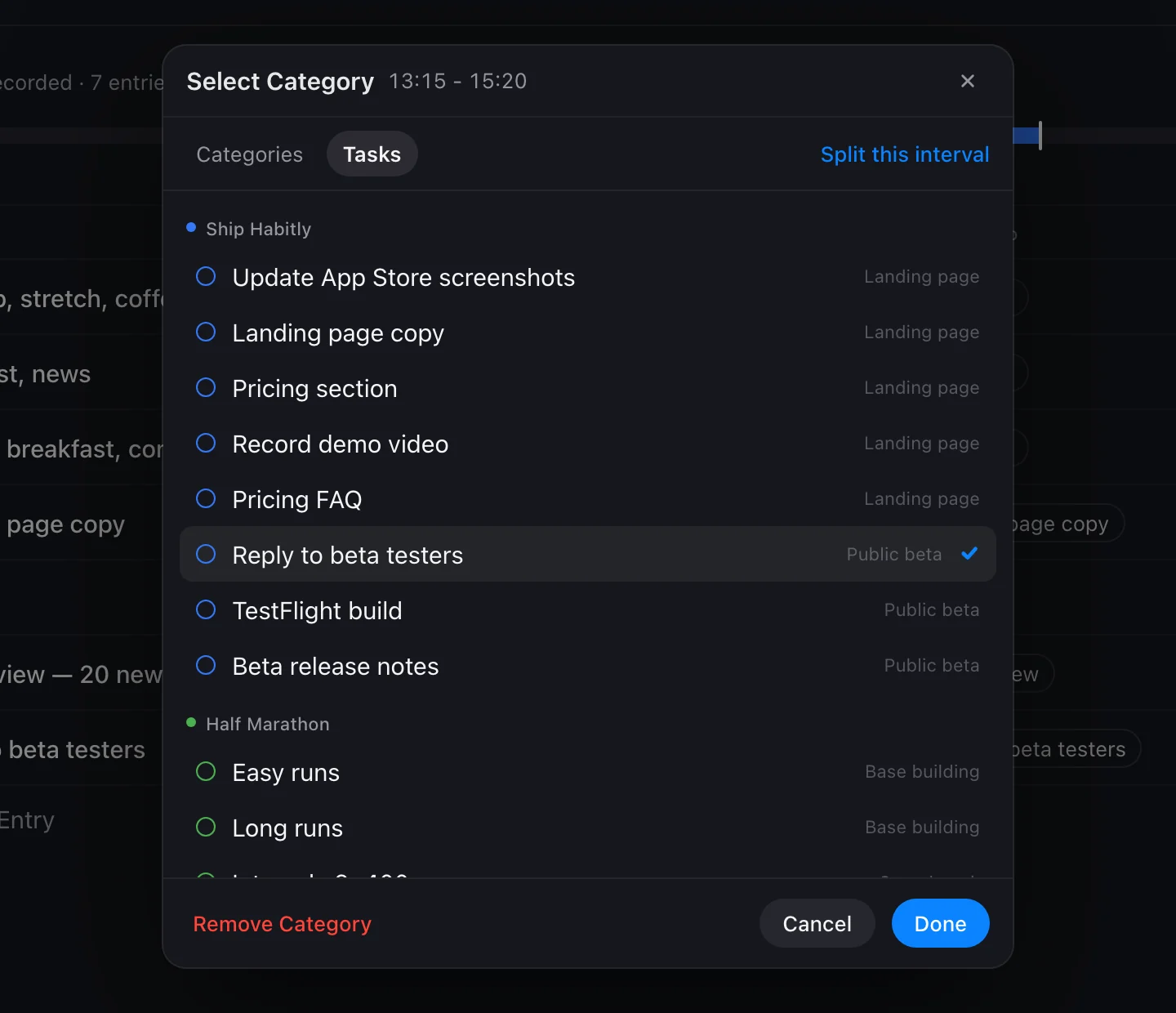
Tap an entry's category to file it under one of your categories, or switch to Tasks and pick the todo you were working on. A todo ties the time to its goal, so the hours count toward that goal's progress. If one entry covered two things, split it in two.
- 01Categories can nest, and each has a color, an icon and an energy level
- 02Pick a todo and its goal gets the credit
- 03Split this interval divides one entry into two at the time you choose
Log from the Mac you're on or the watch on your wrist.
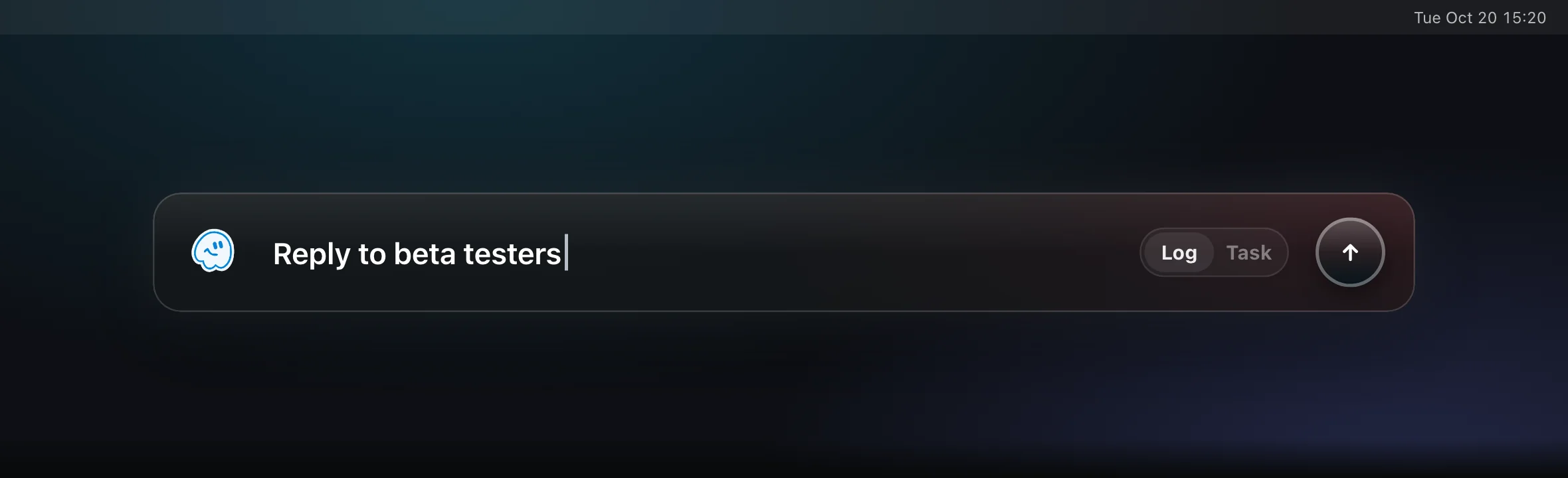
The best time to log is the moment you switch, so FluxTime puts the log where you already are. On Mac, turn on the Quick Log shortcut in Settings and a log bar opens over whatever app is in front. Type what you're starting, press Return, and it lands in today's journal.
Apple Watch: one tap per entry
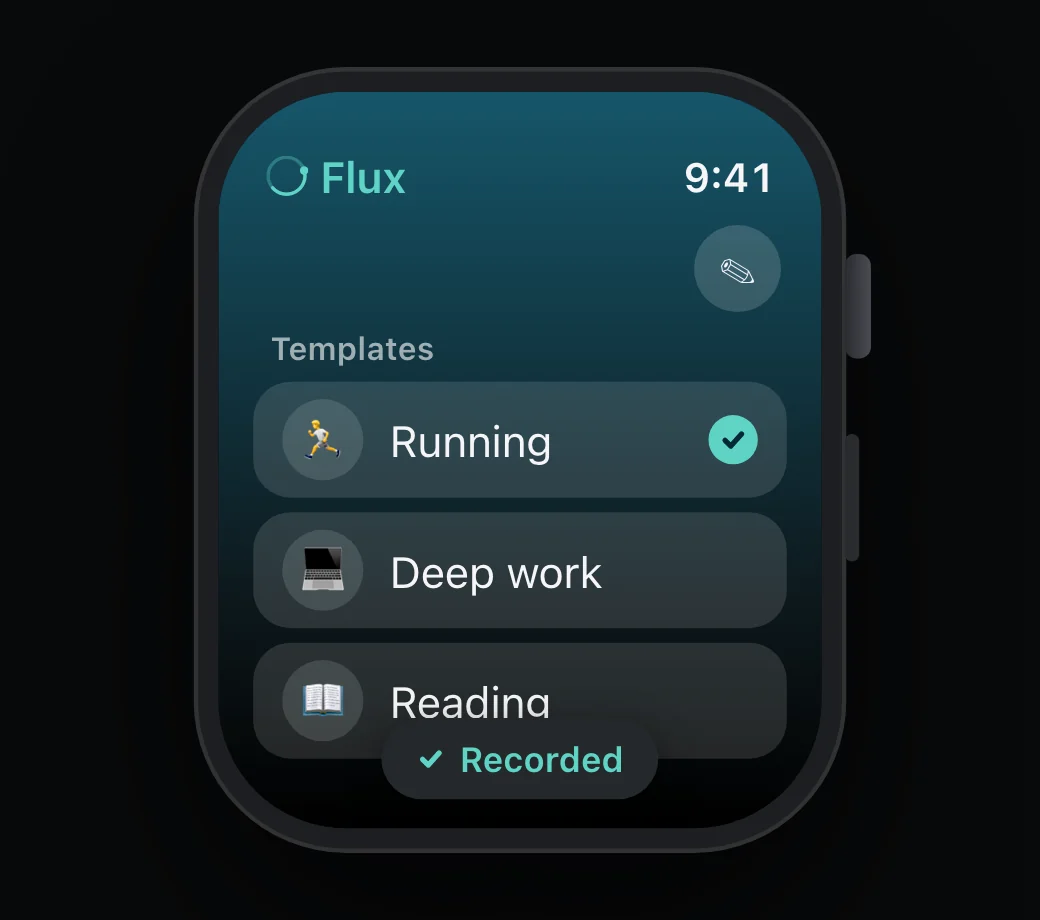
Set up templates on your iPhone for the things you log often. On the watch, tap one and it's recorded with the time you tapped it. For anything else, tap the pencil and dictate, scribble or type a one-off entry.
- 01Templates come from your iPhone
- 02Dictation, Scribble or the keyboard for one-off entries
- 03On Mac, Tab switches the log bar to Task to capture a todo instead
See your log next to your plan.
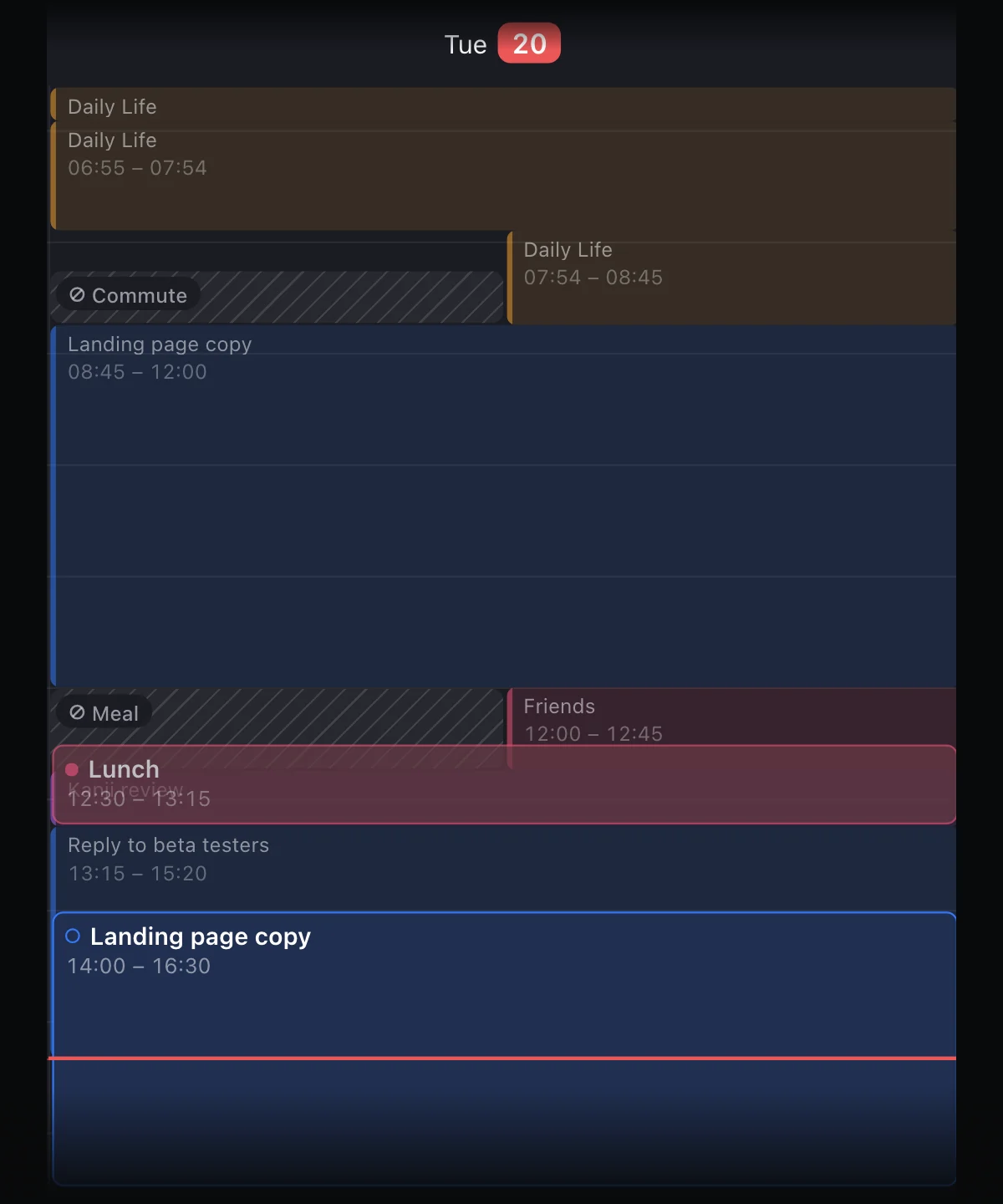
Everything you log in Journal also shows on the Today calendar, as a soft wash in its category color behind the tasks you planned. You can see where the plan held and where the hours went somewhere else, without opening a report.
Built for interstitial journaling.
Interstitial journaling means writing a short note at each break between tasks: the time, what you just finished and what you're starting. FluxTime's Journal is built around exactly that habit, so the notes double as a time log. Read what interstitial journaling is and how to start, or use a week of logging as a time audit.
Keeping a time log with FluxTime
What is a time log?
A time log is a record of what you did and when, written as the day happens. Reading it back shows where your hours actually went, which is hard to remember accurately at the end of the day.
Do I need to start and stop a timer?
No. In FluxTime each journal entry starts when you log it and ends when you log the next one, so you write one line each time you switch to something new.
What if I forget to log something?
Add the entry when you remember, then change its start time to when it really began. On Mac you can type times like 1845, 9:30 or 6:45pm, or step them by a few minutes; on iPhone and iPad you pick the time.
Can I log time from Apple Watch or my Mac?
Yes. On Apple Watch, tap a template or dictate a one-off entry. On Mac, turn on the Quick Log shortcut and a log bar opens over whatever app you are in.
Is the time log free?
Yes. Journal, Apple Watch logging, the Mac log bar and CSV export are part of the free app. Cloud sync between your devices and the advanced Review charts, such as Energy Curve and Category Trends, are included in Flux Pro.
Can I export my time log?
Yes. Export Time Entries in Settings saves a CSV with each entry's date, start and end time, duration, note, category and linked task, ready for a spreadsheet.
It all happens in Journal.
The time log isn't a separate mode. It's the Journal screen, the same place you keep a record of your work, and the place Today and Review read from when they show where your time went.
Find out where the hours go.
Keep a time log on the Apple devices you already use, one entry at a time.
Get FluxTime free