 FluxTime
Journal entries
Log your day one line at a time. Each entry runs until the next one, so there is no timer to start or stop.
The journal is FluxTime's time log. Write one line each time you switch to something new. The entry before it ends right there, so each entry's duration is simply the gap until the next one. Review, Today and your goals all read from it.
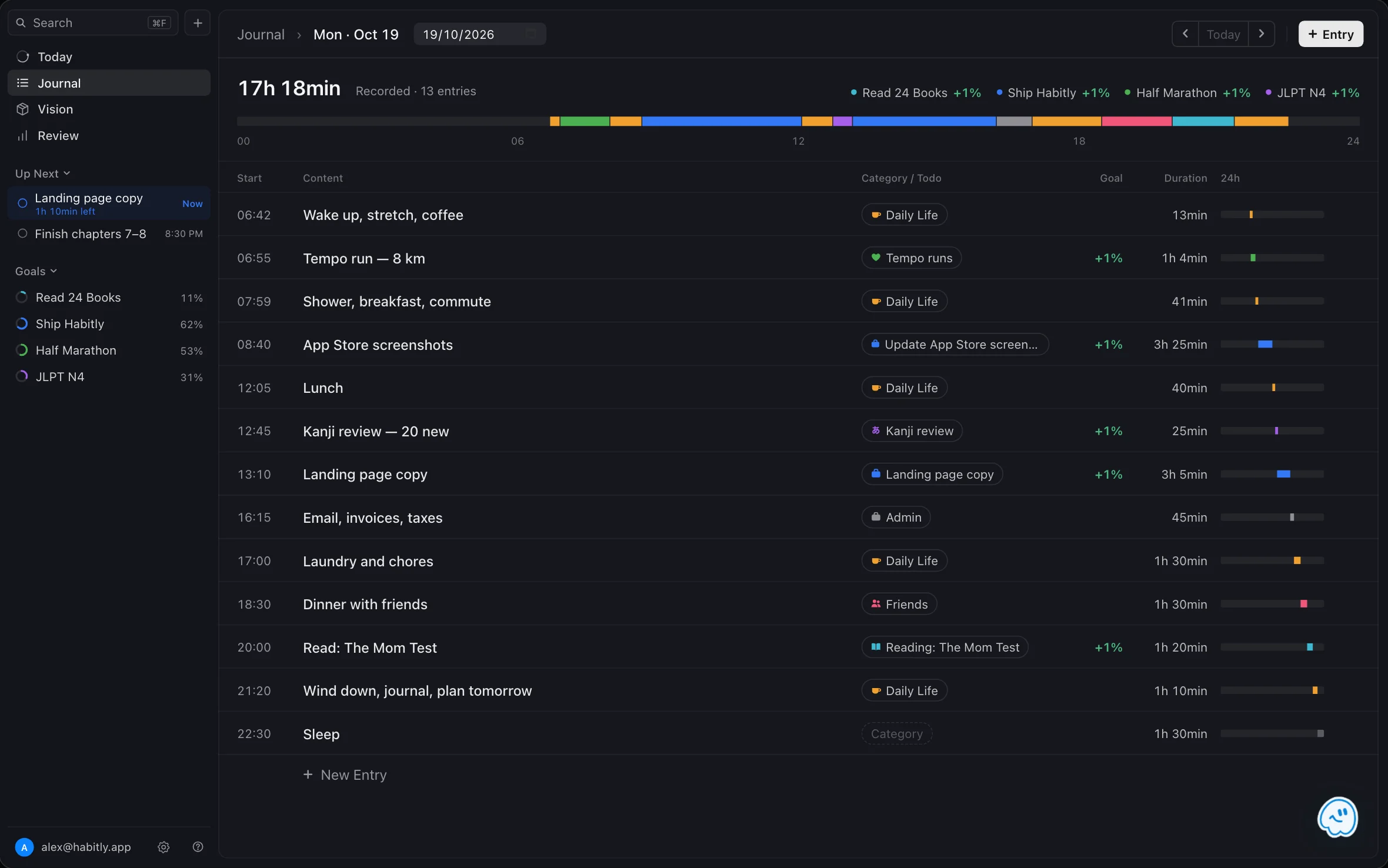
Add an entry
- Open Journal.
- Add a new entry and write what you are starting, like Draft the pricing page or Lunch with Sam.
- Give it a category or link it to a todo (see below).
FluxTime stamps the current time. The new entry shows In Progress until you add the next one; then it closes and its duration is the time between the two.
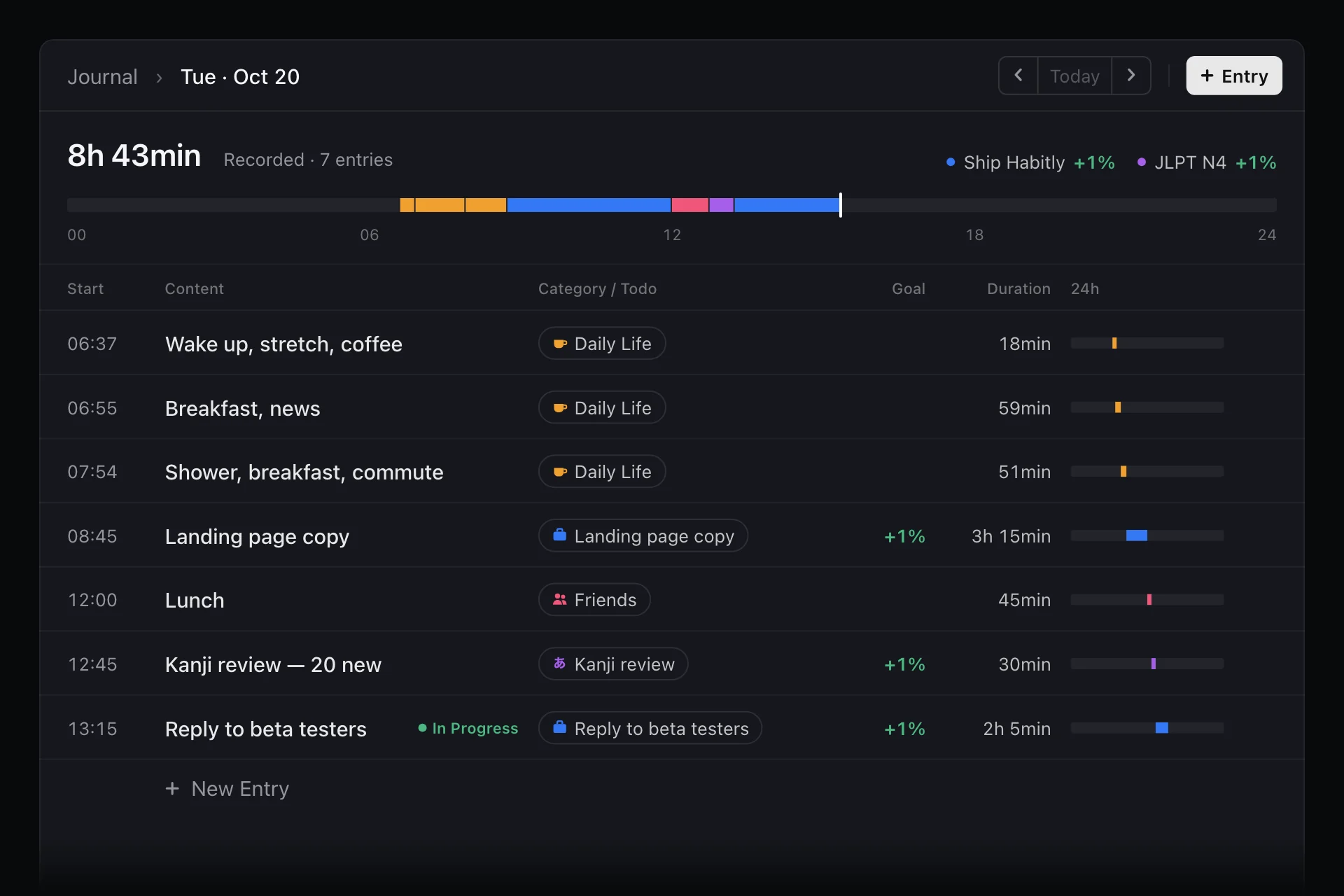
Read the day
- The band at the top shows the whole day as colored stretches, with a line at the current time.
- The total adds up the time you actually logged that day.
- Goal progress shows how far each goal moved today, from entries linked to its todos.
To fill in or tidy up an earlier day, step back to it with the arrows in the date header.
Fix an entry's time
Logging late is normal. Change the entry's start time to when it really began, and the entry before it adjusts to match, because one entry always ends where the next begins.
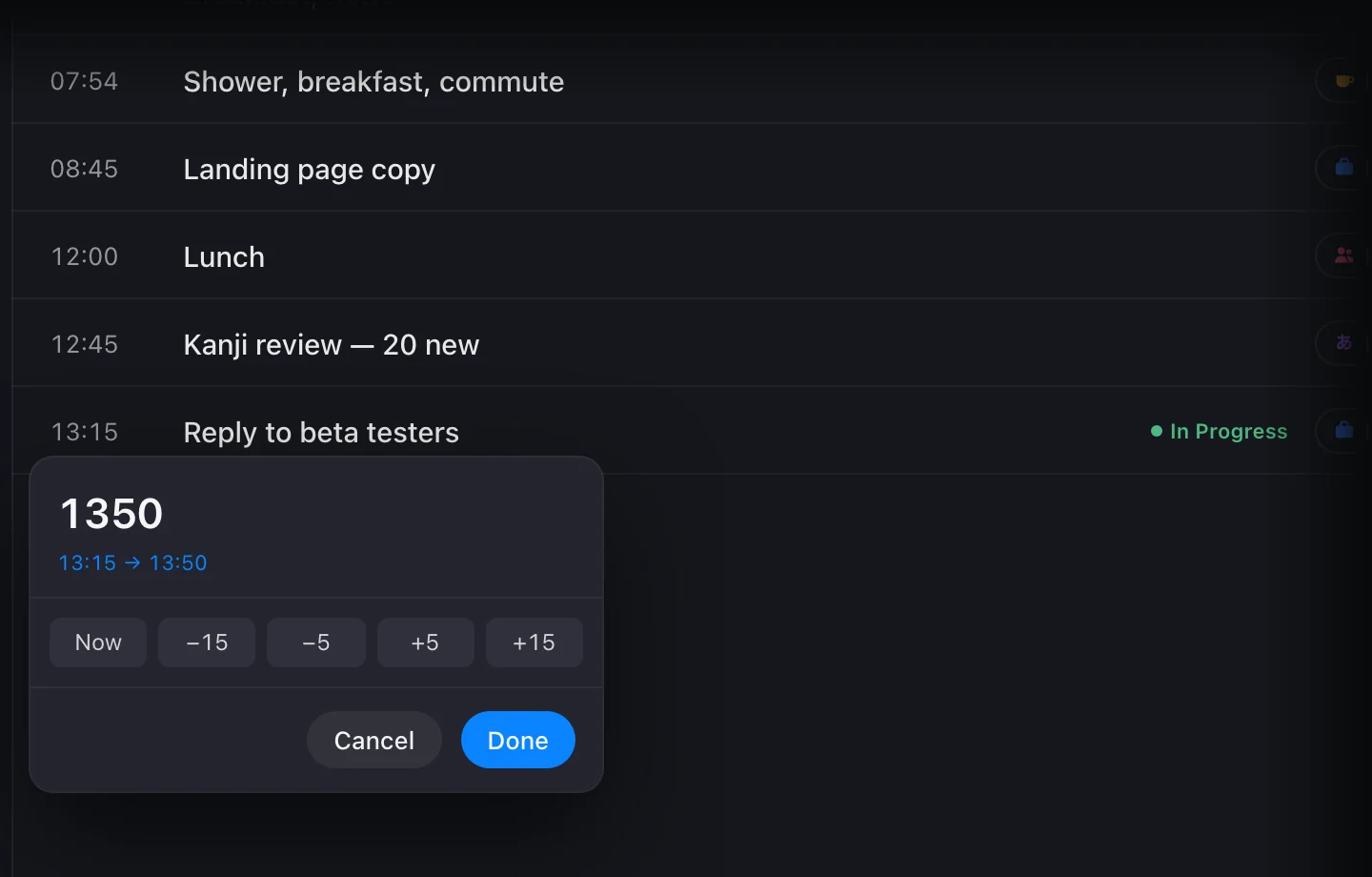
- On Mac, type the time. FluxTime reads
1845,9:30or6:45pmand shows the change before you confirm it. You can also step by −15, −5, +5 or +15 minutes, jump to Now, use the arrow keys to step the hour or minute, and press Return to confirm. - On iPhone and iPad, pick the time on the time wheel.
Link an entry to a todo
Tap an entry's category and switch to Tasks to pick the todo you were working on. The time counts toward that todo's goal, and the entry shows how much it moved the goal, like +4%.
When you link an entry to an open todo, FluxTime asks whether the todo is finished, so your list and your log agree. You can mark it complete right there, or later.
Split an entry
If one entry covered two different things, tap its category and choose Split this interval. Pick the time to split at, and you get two entries you can file separately.
Log without opening the journal
- Mac: the Quick Log shortcut opens a log bar over any app.
- Apple Watch: tap a template to log it in one tap, or dictate a one-off entry.
Get a daily reminder
To be reminded to write your journal, turn on Daily Reminders in Settings → Schedule → Reminders and choose a time and message.
Export your journal
Settings → Data → Export → Time Entries saves a CSV with each entry's date, start and end time, duration, note, category and linked task, ready for a spreadsheet.
Learn more
- Time log: why a time log beats a timer.
- Work log: use the journal as a record of what got done.
- What is interstitial journaling?: the method the journal is built on.
Last updated