 FluxTime
See where your time actually goes.
FluxTime is a personal time tracker for your whole day, not a timesheet. Write a line in your journal when you switch tasks, and Review adds it up: hours by category, how this month compares with the last, how fast each goal is moving, and when in the day your energy runs high.
No timers to start or stop/Nothing watches your screen/Work, training and friends in one picture
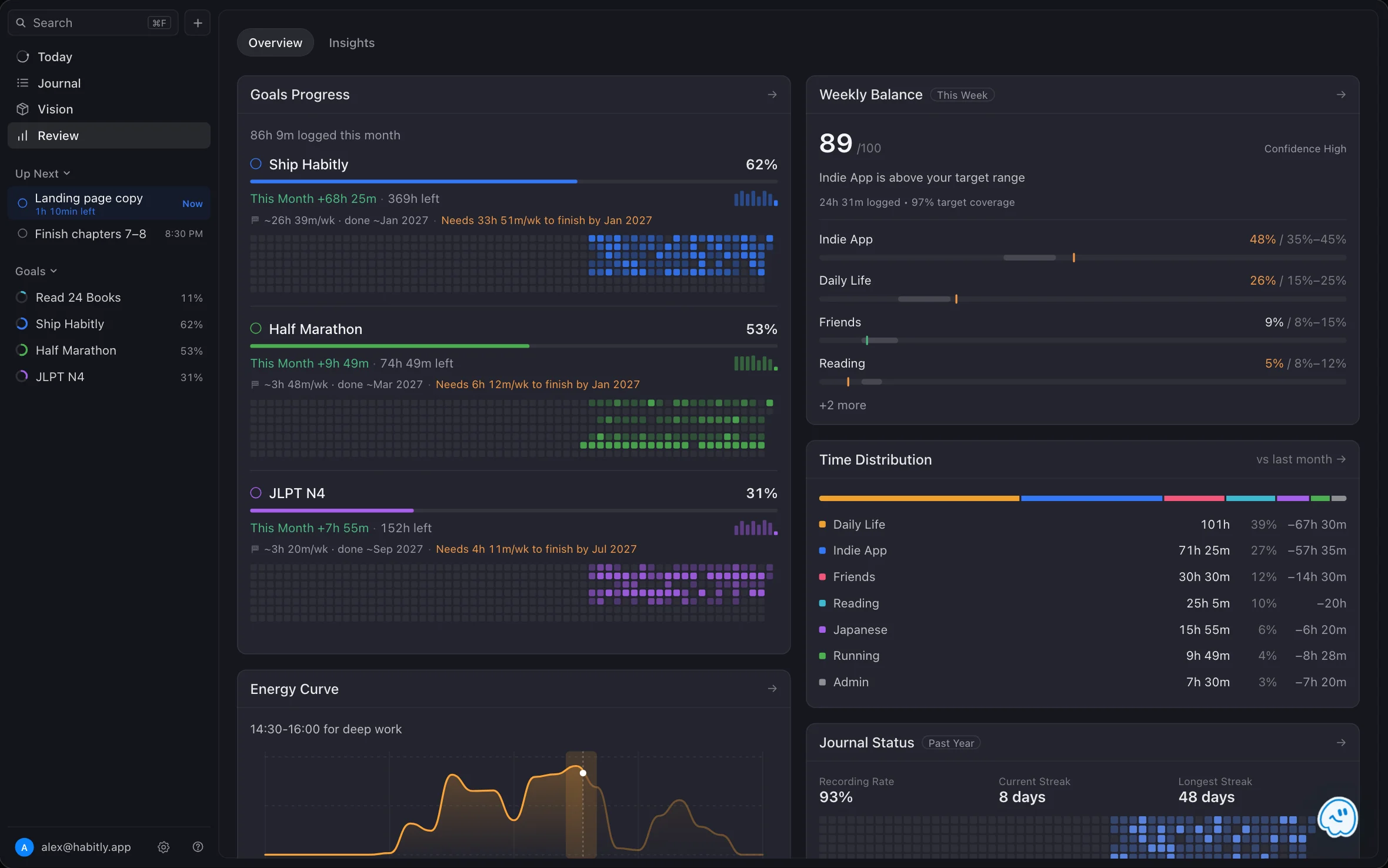
Where does my time go?
Most people can't answer that from memory, and their guesses are usually off. A time tracker replaces the guess with a record. FluxTime keeps the record in the journal and does the adding up in Review, so the answer is ready whenever you look.
Write a line when you switch
Each journal entry runs until the next one. No timer, and a missed switch is easy to fix later.
02 / SORTGive it a category
Work, training, family, learning: your own categories, with subcategories when you want detail.
03 / SEERead the totals in Review
Hours by category, the change from last period, and the time each goal got.
04 / ADJUSTPlan the next week from it
Take what you learned back to the plan in Today.
A record of your day, without running a timer.
Timers break the moment you forget to stop one. In FluxTime you note what you're starting, and the entry before it ends there. Log from the journal on iPhone, iPad or Mac, or from Apple Watch when your phone is in a bag. The time log page shows how logging works in detail.
- 01Nothing runs in the background or reads your screen; only what you write is counted
- 02A run, a dinner or an hour of reading counts as much as time at your desk
- 03Every entry with a category or a goal's task shows up in Review
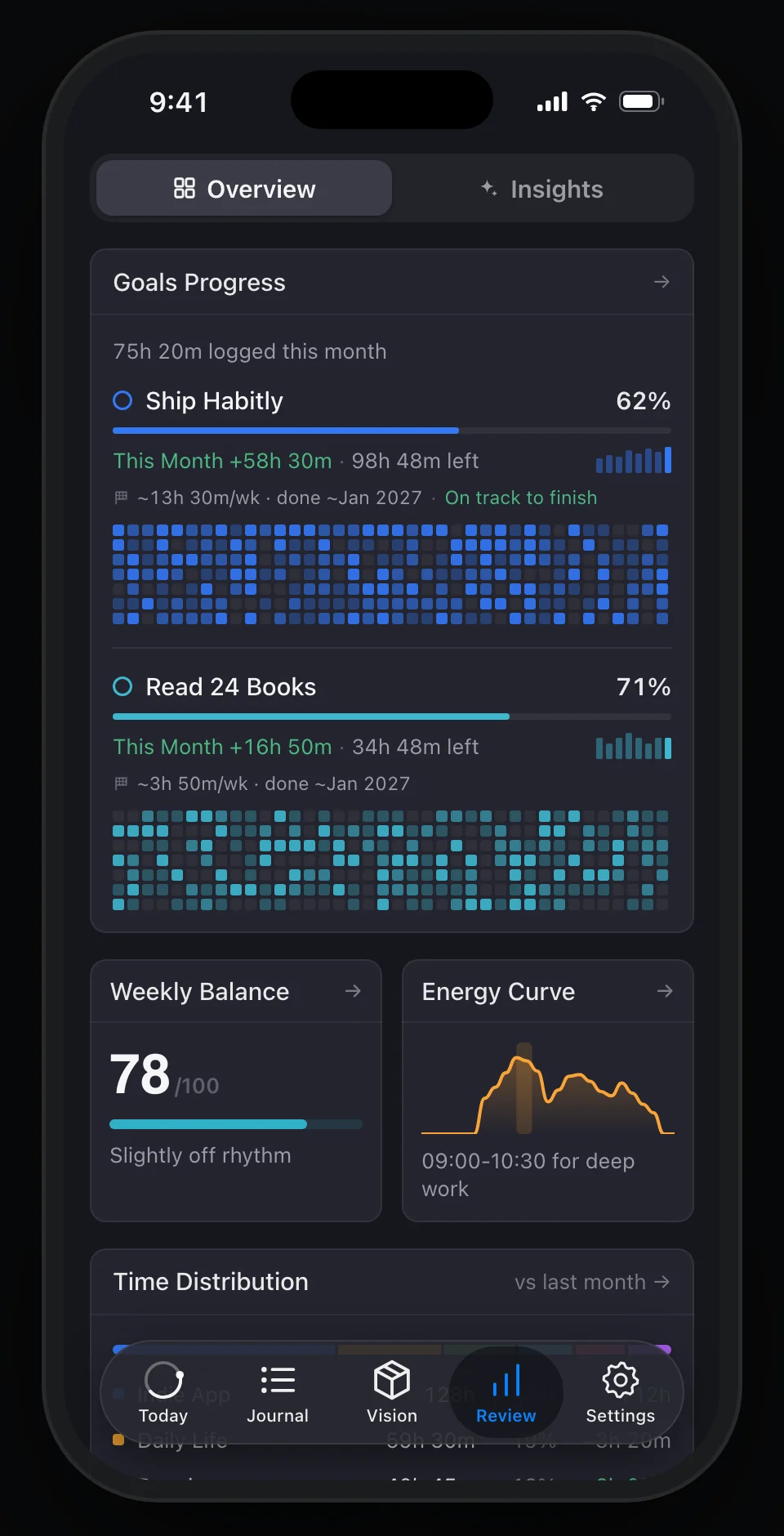
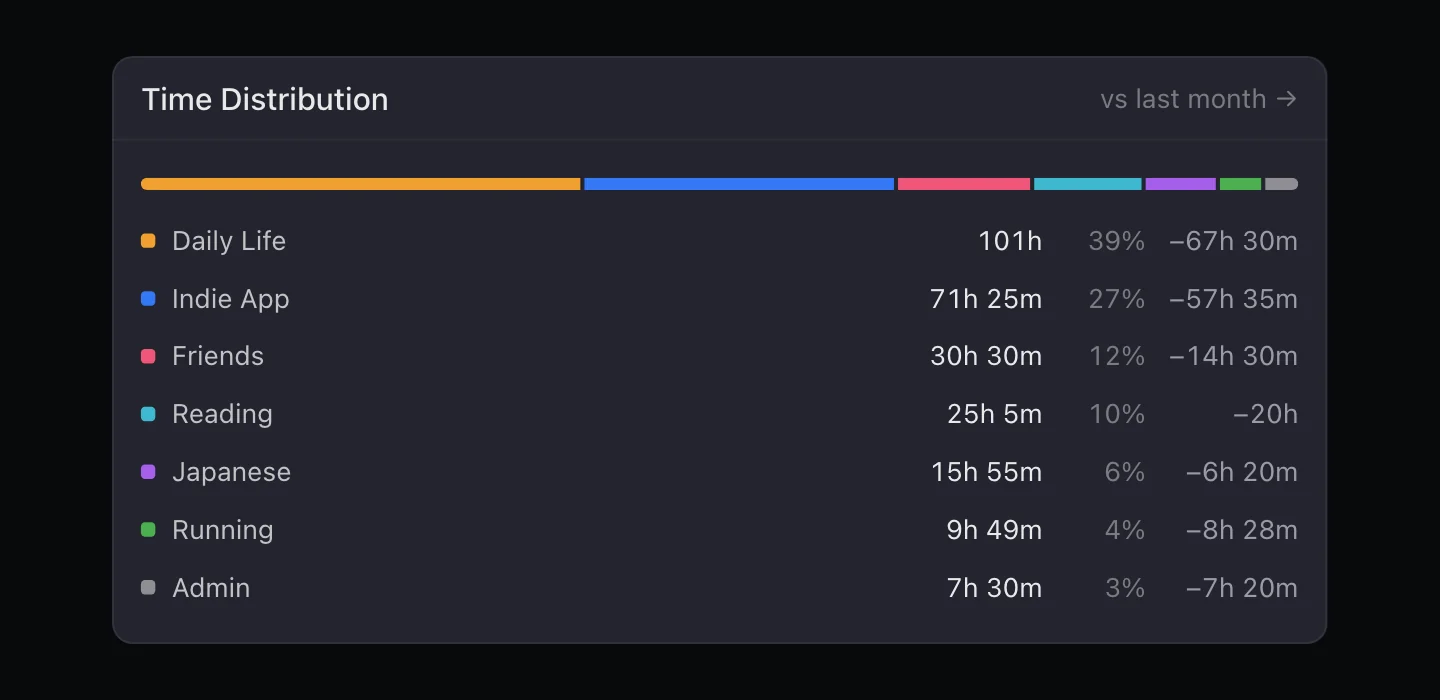
Every category's hours, and how they changed.
Time Distribution splits the period by your top-level categories, with each one's hours and share, and the change from the period before in green or gray. Open it to switch between week, month and year, step back through earlier periods, and expand a category into its subcategories and the goals filed under it.
- 01Week, month or year, compared with the one before
- 02Subcategories and related goals inside each category
- 03A bar chart of a category over recent periods with Category Trends Flux Pro
See which goals are getting your time.
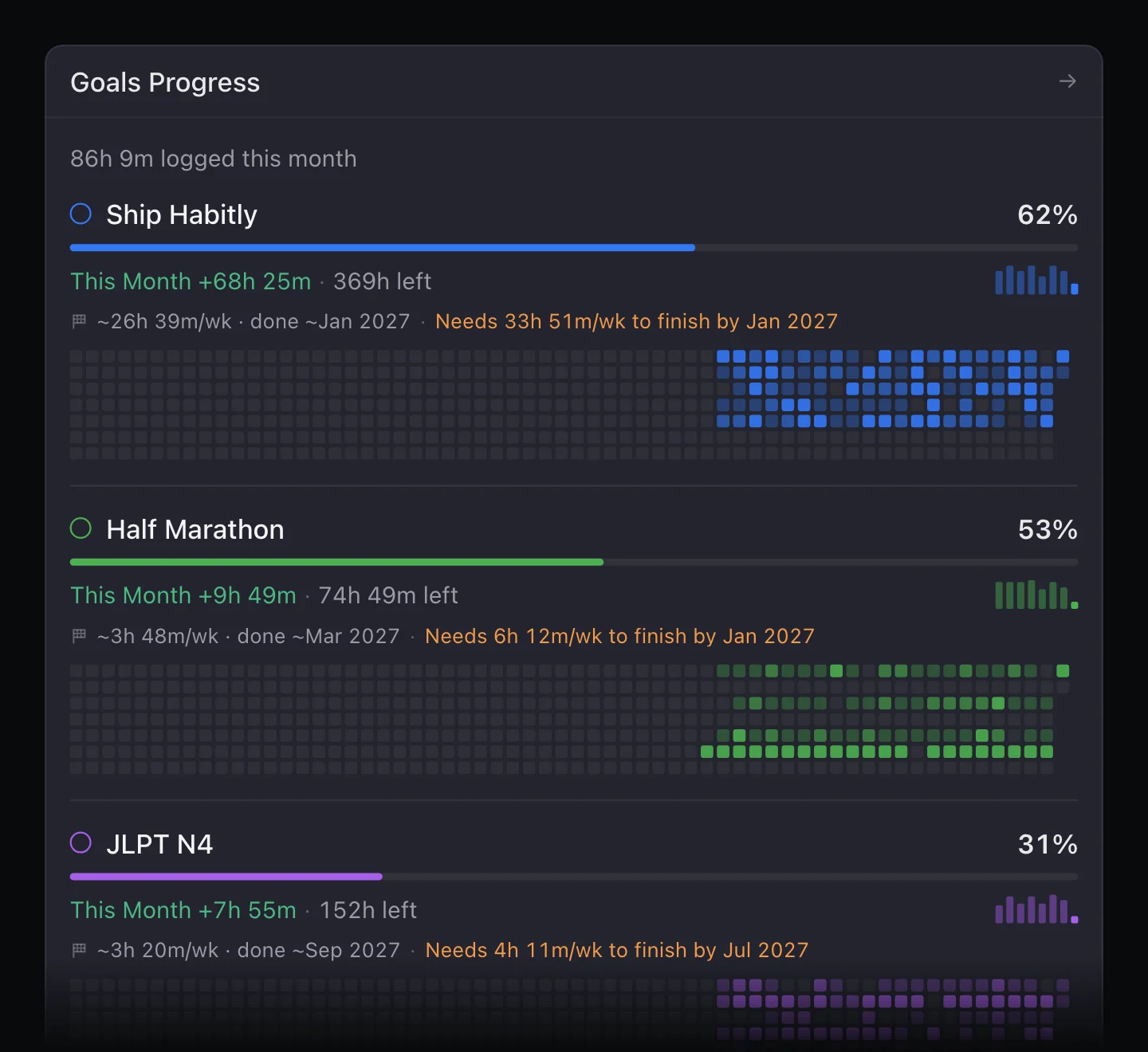
Every goal in FluxTime has an estimate in hours, and time you log on its tasks counts toward it. Review shows how much each goal got this month and how much is left. From the last four weeks it works out your pace and when you'll finish, and, if the goal has an end date, whether you're on track or how many hours a week it needs.
- 01"~13h 30m/wk · done ~Jan 2027", worked out from the last four weeks
- 02"Needs 2h 15m/wk to finish by Jul 2027" when a goal falls behind
- 03Weekly bars and a streak of active days with Goal Activity Flux Pro
Goals and their projects are set up in Vision. See the goal planner.
Know when your best hours are.
Hours aren't all equal. Mark each category High Energy, Neutral or Low Energy once, and the Energy Curve averages those labels over the time you logged, five minutes at a time, to show how your energy usually runs across the day. It also picks the best 90 minutes between 06:00 and 22:00 for deep work. You never have to stop and rate how you feel.
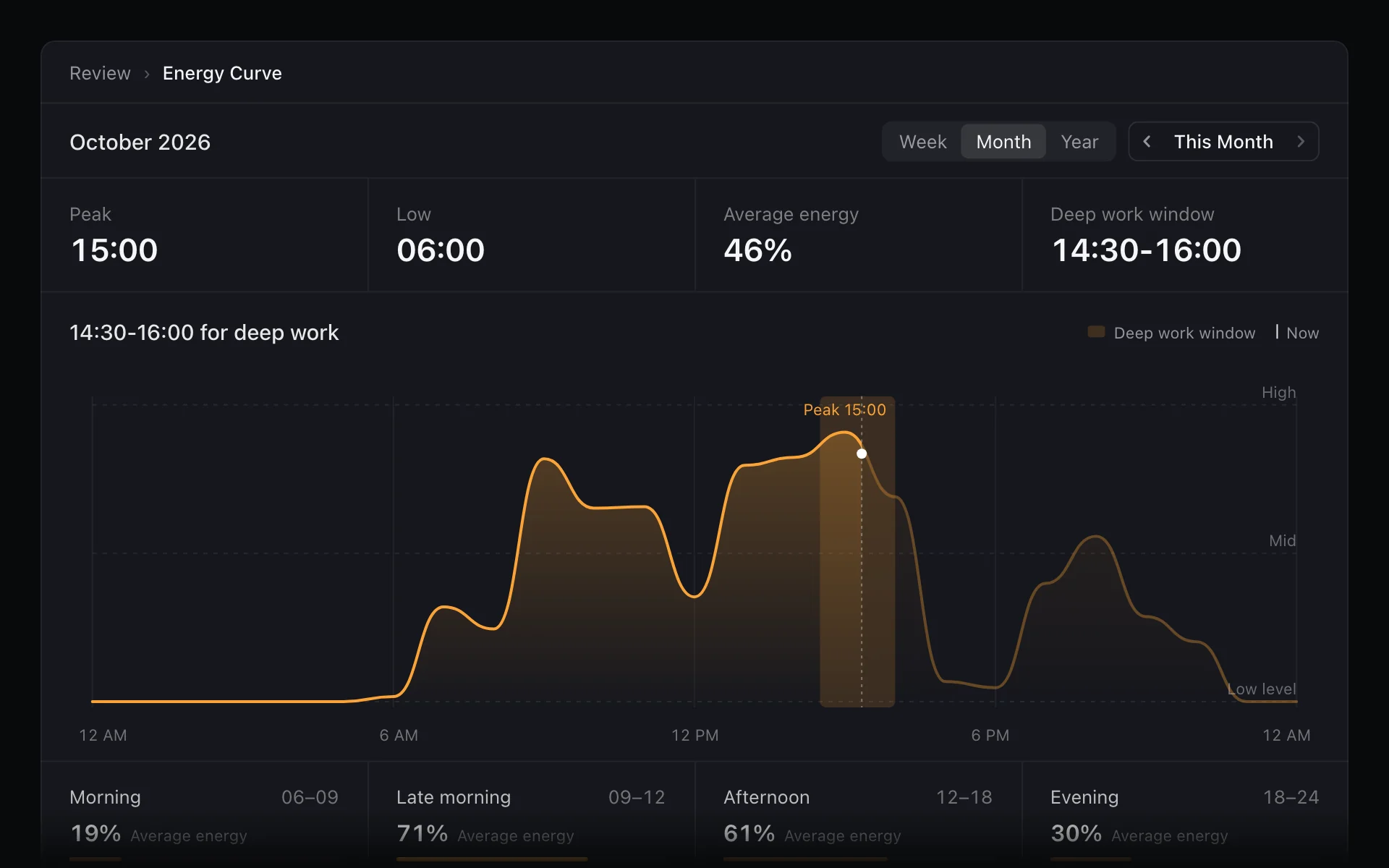
Your deep work window
"14:30-16:00 for deep work": the 90 minutes that usually run highest, ready to protect with a time block.
Peak, low and average
The hours that run highest and lowest, and morning, late morning, afternoon and evening side by side.
Month by month
Step back through earlier months to see whether a new routine moved your peak.
Check the week against the rhythm you chose.
Decide what share of your week each top-level category should get, say 35–45% for work and 10–15% for friends. Weekly Balance compares the week so far with those ranges and gives it a score out of 100, names the categories that are above or below their range, and tracks the score week to week.
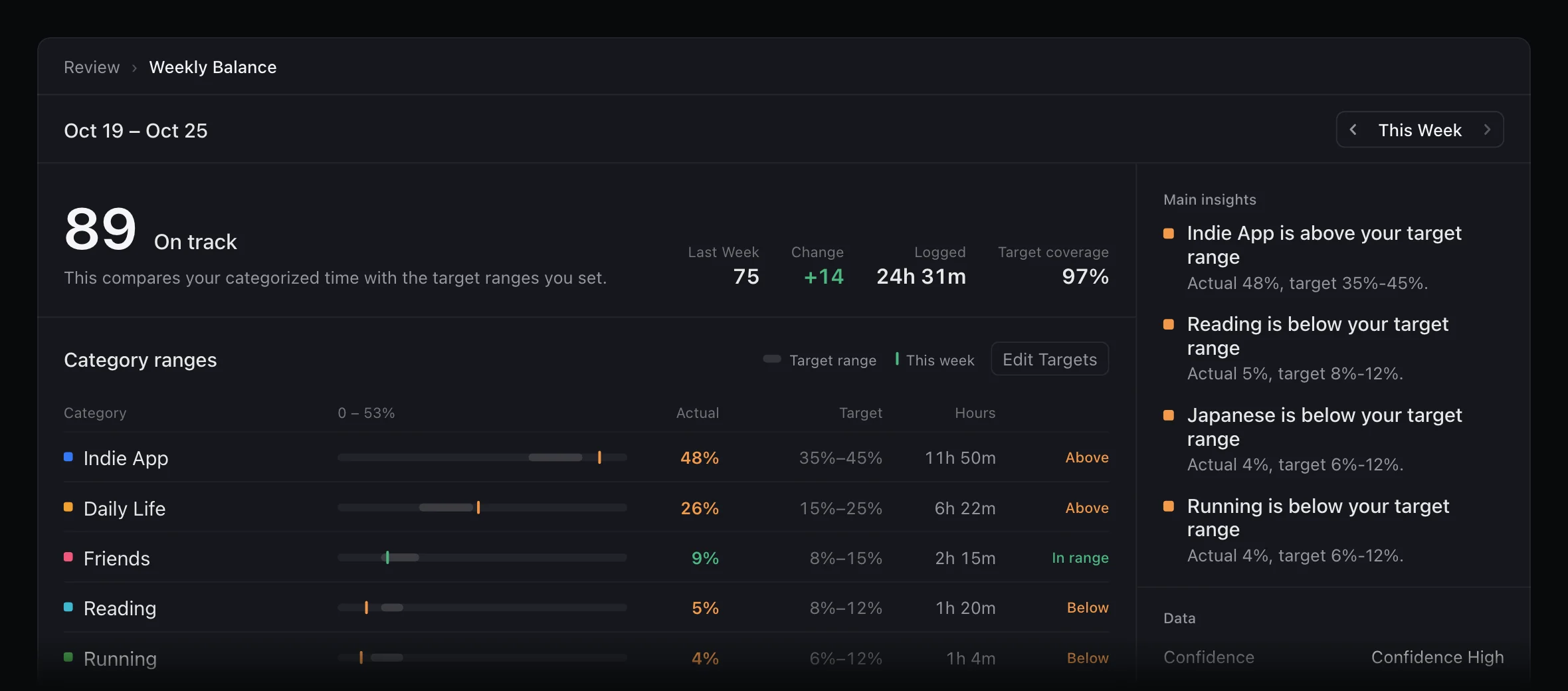
Ranges, not quotas
Each category gets a band. Anything inside it counts as in range, so an ordinary week isn't marked as failing.
Honest about thin data
With little logged, the score shows low confidence and reads as an early signal rather than a judgement.
A trend, not one week
Follow the score weekly or monthly to see whether a change you made stuck.
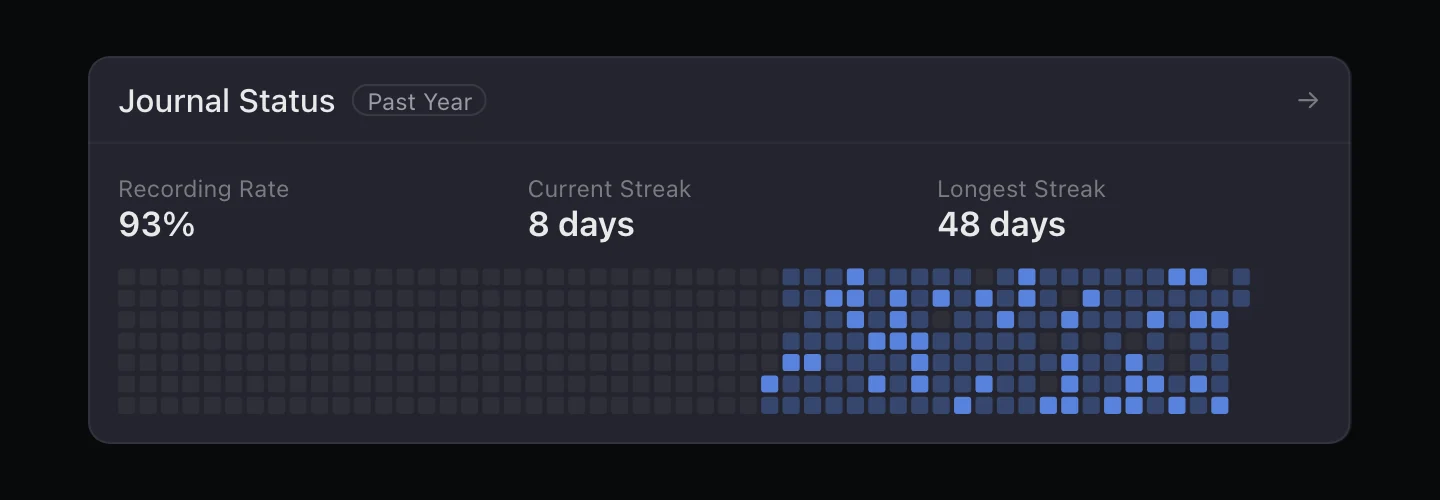
A year of logging at a glance.
Totals are only as good as the days behind them. Journal Status shows how many days you recorded, your current and longest streak, and a heatmap of the past year shaded by each day's energy. Tap a day to open its journal.
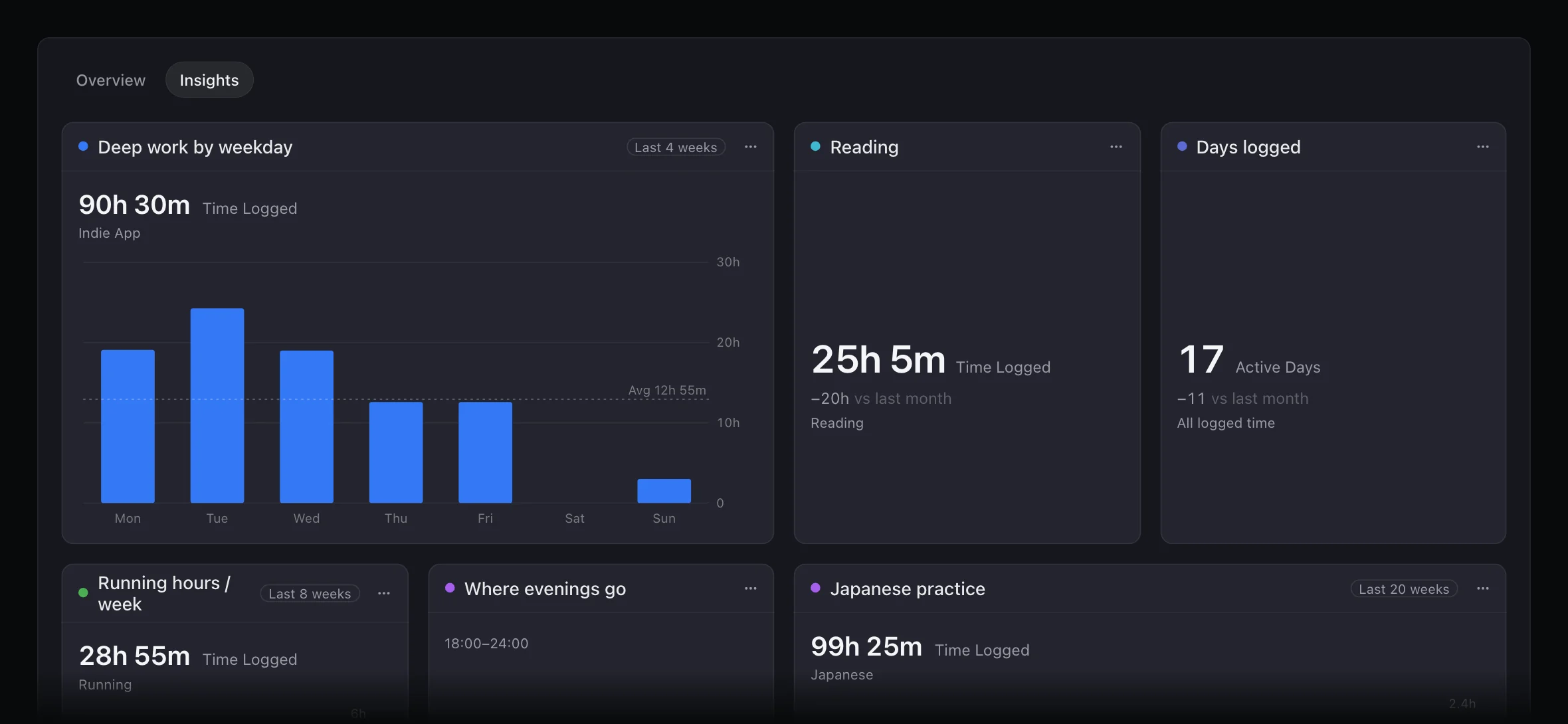
Ask for the chart you can't find.
When the built-in views don't answer your question, ask Flux AI: which weekdays get the most deep work, where your evenings go, how often you trained this month. It answers with a chart from your journal, and Add to Review keeps it under Review → Insights, recalculated each time you open it. Free accounts get a daily allowance of Flux AI messages; Flux Pro makes it unlimited. More on the AI planner page.
What's free, and what Flux Pro adds.
Logging and the core of Review are free. Flux Pro adds the deeper views, along with smart day planning, unlimited Flux AI, Apple Calendar and cloud sync. Compare plans on Pricing.
Free
- 01Journal logging on iPhone, iPad, Mac and Apple Watch
- 02Time Distribution by week, month or year, with the change from the last period
- 03Goals Progress with pace and finish forecast
- 04Journal Status: recording rate, streaks and a year heatmap
- 05Export to CSV and JSON
Flux Pro
- 01Energy Curve and your deep work window
- 02Weekly Balance score against your target ranges
- 03Category Trends over recent periods
- 04Goal Activity: weekly bars and active-day streaks
- 05Energy Curve and Goal Activity widgets, and unlimited Flux AI
Time tracking with FluxTime
Is FluxTime a time tracking app for personal use?
Yes. FluxTime is built for one person's whole day, not for billing clients. You log what you do in the journal, and the Review view adds it up by category, compares it with the previous period and counts it toward your goals.
Does FluxTime track my apps or screen time automatically?
No. FluxTime doesn't watch your apps, websites or screen. It only counts what you write in the journal, so a run, a dinner with friends or an hour of reading counts as much as time at your desk.
Do I need to start and stop a timer?
No. Each journal entry runs until the next one, so you only write a line when you switch to something else. You can log from iPhone, iPad, Mac or Apple Watch.
How does FluxTime work out my energy?
You don't rate your mood. Each category is marked High Energy, Neutral or Low Energy, and the Energy Curve averages those labels across the time you logged, in five-minute slots, to show when your days usually run high. It also names the best 90-minute window for deep work. Energy Curve is part of Flux Pro.
Which parts of Review are free?
Time Distribution, Goals Progress with the finish forecast, and Journal Status are free. Energy Curve, Weekly Balance, Category Trends and Goal Activity are included in Flux Pro, along with unlimited Flux AI.
Can I export my time data?
Yes. In Settings you can export your time entries as a CSV for a spreadsheet, your goals and tasks as a CSV, or all of your data as JSON.
Log it, review it, plan better.
Review is the last step of a loop that runs through the whole app: goals in Vision, a plan in Today, a record in Journal, and the pattern in Review. What you see here is what makes next week's plan more realistic.
Stop guessing where the week went.
Track your time on the Apple devices you already use, and let Review show you the pattern.
Get FluxTime free