 FluxTime
Projects and todos
Break a goal into projects and todos in Vision's outline, estimate each one, and send todos to Today.
Under each goal in Vision sit its projects, the pieces you can finish, and under each project its todos, the steps small enough to do in one sitting. All three levels live in one outline, so the reason behind every todo is one line above it.
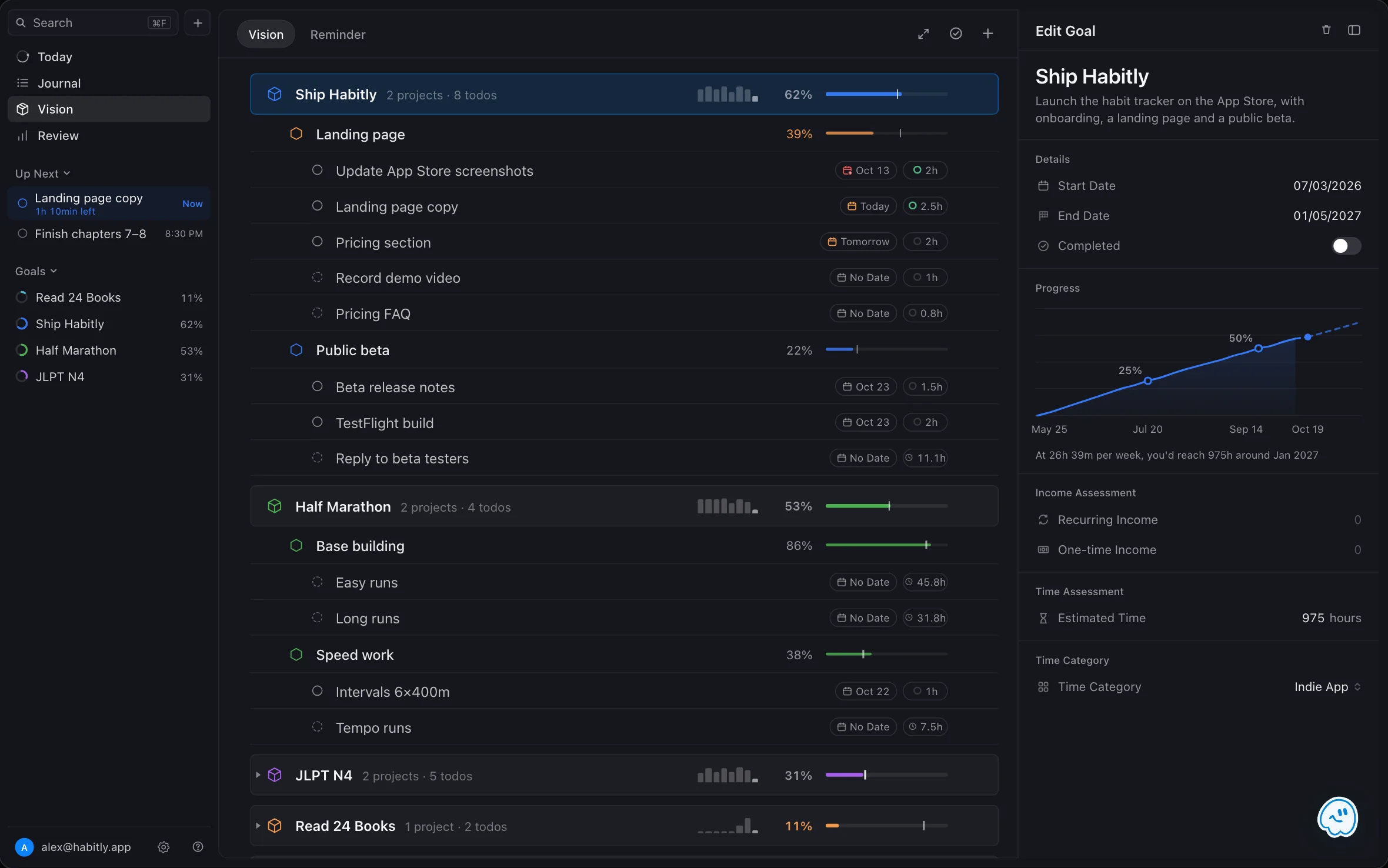
Add a project
Select a goal in Vision and add a project under it. A project has a title, its own dates and an optional hour estimate. On Mac you can also press ⌘ N and choose a project.
Add a todo
Add a todo under a project. Its main fields are:
| Field | What it does |
|---|---|
| Title | The step, phrased as something you can do. |
| Project | Where it belongs. The project decides which goal the todo's time counts toward. |
| Due Date and Time | When it is due. Give it a time to put it on the Today timeline, or leave the time empty to keep it in the Unscheduled tray. |
| Is Event | Turn on for something with a fixed start and end, like a meeting. Leave off for a flexible task. |
| Estimated Time | How long it should take. Shown in Today so you can see what fits a gap. |
| Remind me | A notification a set number of minutes before it starts. |
Estimates add up
You can estimate a goal, a project or a todo. When a goal or project has no estimate of its own, FluxTime adds up the estimates below it, marked auto calculated. A goal's progress bar uses that total.
Work with the outline
- Expand or collapse. Open a goal to see its projects, and a project to see its todos. Expand everything to plan the week, or collapse it all to see only where each goal stands.
- Hide finished work. Completed projects and todos are struck through, and one button hides them.
- Read it at a glance. Every row lines up its percentage and bar, so a dozen goals still read cleanly.
Delay a todo
To keep a todo out of planning until later, turn on Enable Delay in its details and choose Delay Until. It stays out of Today and Plan my day until that date.
From Vision to Today
Todos without a time wait in the Unscheduled tray in Today, with their project and estimate. Drag one onto the timeline when a gap opens, or let Plan my day place them for you. See Today.
Reuse projects with workflows
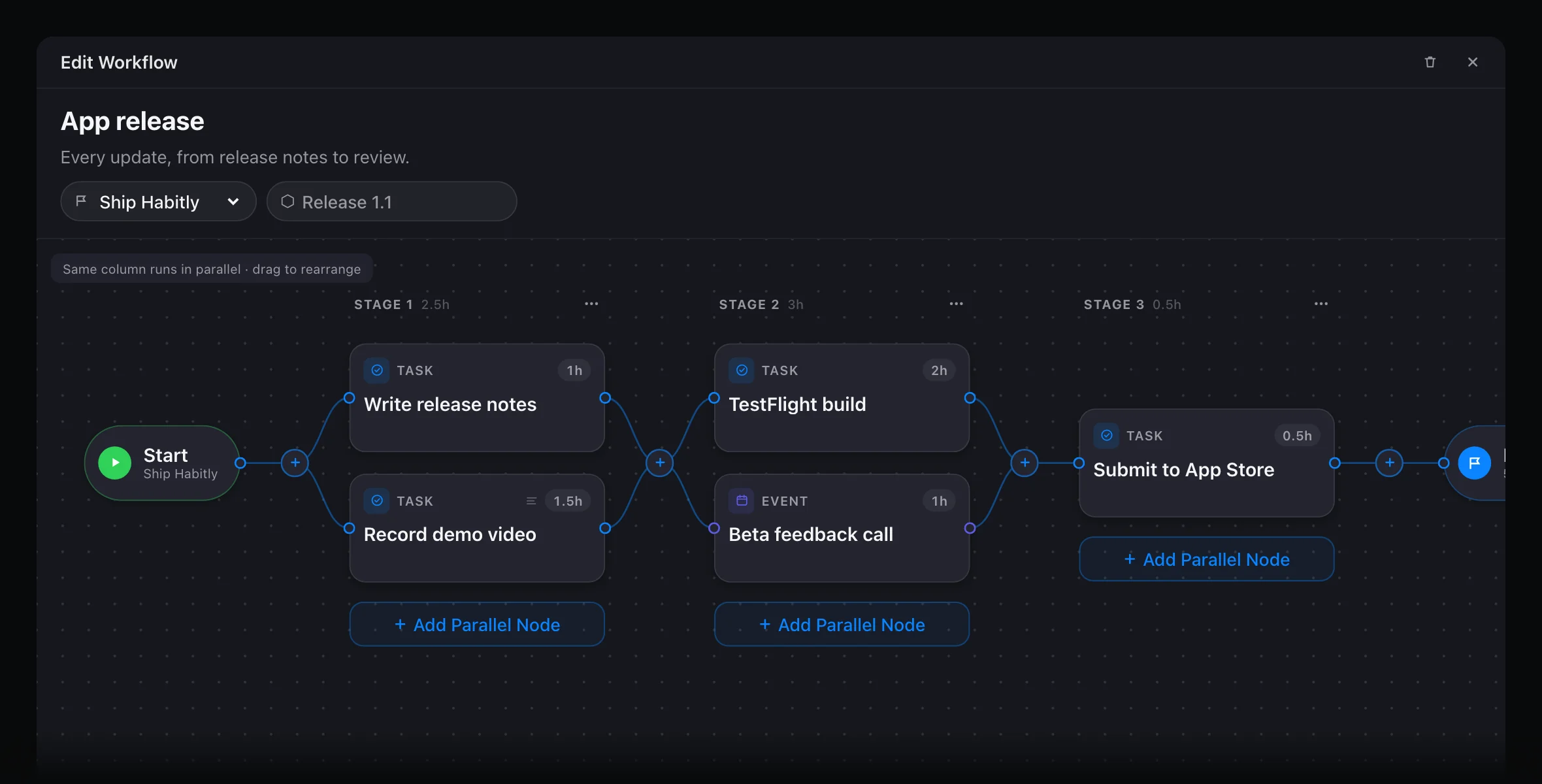
If you run the same kind of project again and again, like a release or a monthly report, lay it out once as a workflow. Using it creates the project under your goal, one stage of todos at a time.
Learn more
- Goal planner: goals, projects and todos in one outline.
- How to break a big goal into projects and todos: a method for splitting a goal into steps.
Last updated