 FluxTime
Web app
Use FluxTime in your browser at fluxtime.io/app with the same account, data and Flux AI as on iPhone, iPad and Mac.
The FluxTime web app runs in your browser, with nothing to install. It has the same four screens as the Mac app, Vision, Today, Journal and Review, plus Flux AI and Settings. Sign in with your FluxTime account and it picks up where you left off on your other devices.
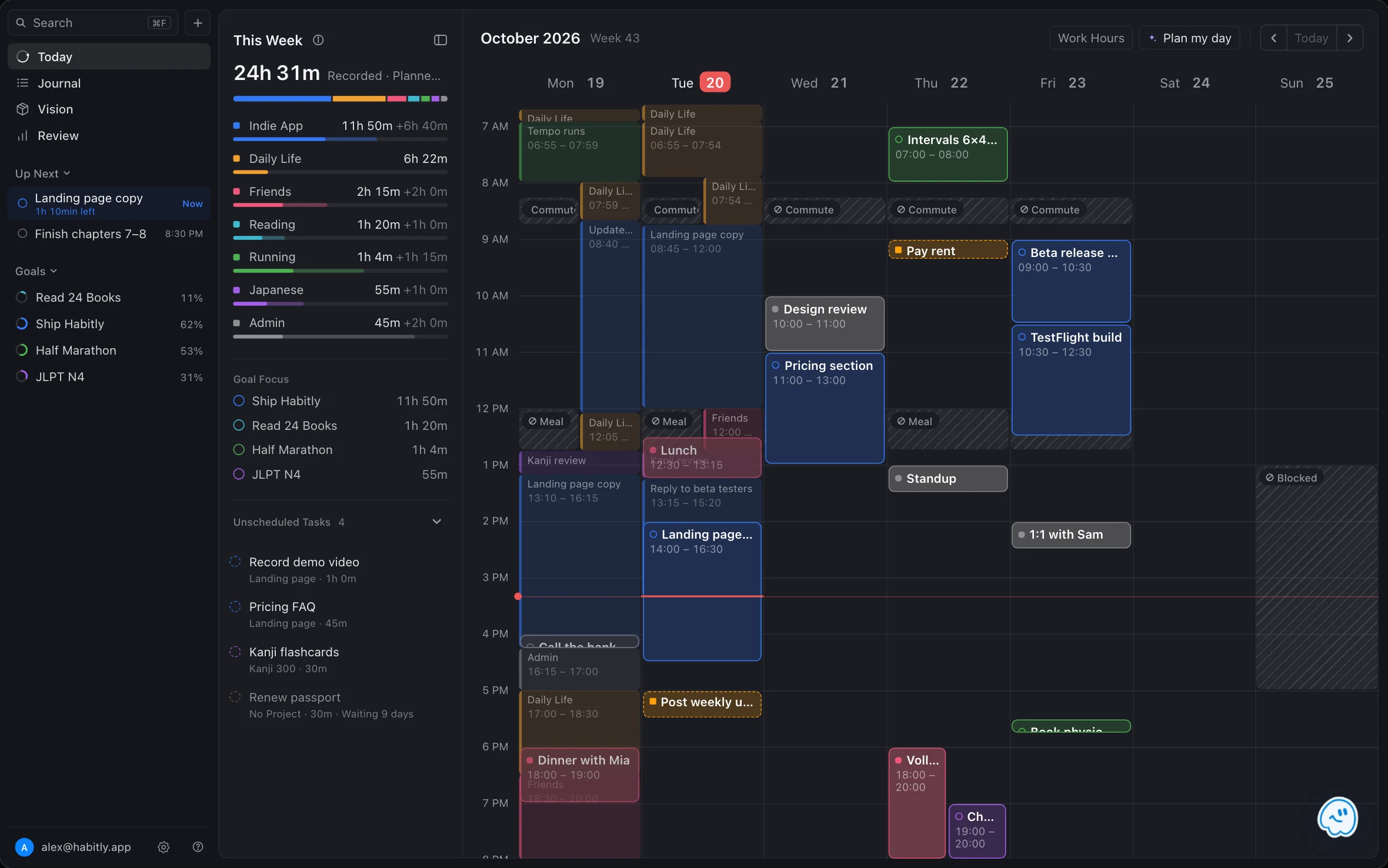
Open the web app
Go to fluxtime.io/app. It is laid out like the Mac app, so it works best on a laptop or desktop screen.
Sign in
- Continue with Apple if you signed up with Apple on iPhone or Mac. That way you use the same account.
- Email and password if your account uses email. To create a new account, choose Create Account, enter your email and a password, and open the confirmation link in the same browser.
After you sign in, FluxTime loads your account's data into the browser. The first load reads every record, so a long history can take a moment.
Signing in replaces whatever the browser held before, such as the demo data. If you made changes there that you want to keep, export them from Settings → Data first.
Try it without an account
Choose Continue without an account on the sign-in screen. The web app opens with demo data, so you can look around every screen. Everything you do stays in this browser, and the browser remembers the choice until you sign in.
In Settings → Data, you can export this browser's data as JSON, import a file exported from the web app, or reset to the demo data. Import and reset only work before you connect an account.
Sync with your other devices
The web app syncs through your FluxTime account, the same cloud sync that keeps iPhone, iPad and Mac in step.
- Changes made on the web are sent to your account and show up in the app.
- Changes from your other devices arrive within seconds. Until the live connection is up, the browser checks every minute.
- Sync Now in Settings → Data syncs right away.
Flux Pro. Sending changes to your account needs Flux Pro, as cloud sync does in the app. Turn on cloud sync in the FluxTime app first; the web app reads your data from there. Subscriptions are handled in the app, not on the web. See Free and Pro.
Settings → Data → Cloud Sync shows when the browser last synced and lists the changes that have not been sent yet. Discard Changes puts everything changed in this browser back to your account's copy. Turn off Writes to keep this browser's changes local for a while.
One tab at a time
FluxTime syncs from one browser tab at a time. If you open it in a second tab, that tab asks you to use the first one, or close it and reload. Two tabs would each keep their own copy and could lose each other's changes.
Flux AI on the web
Flux AI works the same way as in the app, with the same daily limit on the free plan. It needs you to be signed in, and asks before it sends any of your data. Saved charts in Review → Insights show up on the web too; to create or edit one, ask Flux AI in the FluxTime app.
Keyboard shortcuts
| Shortcut | Action |
|---|---|
| ⌘ F | Search goals, projects and tasks |
| ⌘ / | Show keyboard shortcuts |
| ⌘ Return | Create the goal, project or task in Quick Create |
| Esc | Close a panel or menu |
On Windows and Linux, use Ctrl in place of ⌘. Quick Create is the + button next to Search in the sidebar.
Language
Choose English or 简体中文 in Settings → General → Language.
What stays in the apps
Some features need a device and stay in the apps:
- Logging from Apple Watch, and the Quick Log shortcut on Mac. You can still edit your Watch templates in the web app's Settings.
- Widgets, notifications and daily journal reminders.
- Apple Calendar events.
- Subscribing to Flux Pro and managing your subscription.
Connected apps
When you connect FluxTime to Claude, the web app is where you sign in and choose Allow. Settings → General → Account then lists the app under Connected Apps, with the date you allowed it. Choose Remove to take its access away. Connected apps can only read your data.
Signing out
Settings → General → Account signs you out. If this browser has changes that have not synced yet, FluxTime tells you how many and asks before it discards them.
Learn more
- All features: everything FluxTime does, screen by screen.
- Pricing: Flux Pro plans and prices.
Last updated