 FluxTime
Start guide
Set up FluxTime in one sitting: a few categories, one goal, today's plan and your first journal entries.
FluxTime works as a loop. You set a goal in Vision, plan the day in Today, write down what actually happened in Journal, and see the pattern in Review. This guide walks you through the loop once, which takes about fifteen minutes. If you want the ideas behind each screen first, read Concepts.
1. Get the app
FluxTime is free on the App Store for iPhone, iPad, Mac and Apple Watch. Download FluxTime on the device you plan with most. The Apple Watch app comes with the iPhone app. On a computer without the app, use the web app in your browser.
You can use FluxTime without an account. Signing in is only needed for cloud sync, which keeps several devices in step.
2. Make a few categories
Categories describe where your time goes, like Work, Health, Family or Learning. Every journal entry gets one, and Review adds up your hours by category.
Start with four to six broad ones. You can add subcategories later when you want more detail. See Categories for how to create them and set each one's energy level.
3. Set one goal
Open Vision and add a goal you are working on right now. Give it:
- A start and end date, so FluxTime knows how far along it should be.
- An estimate in hours, so progress can be measured in time spent.
- A time category, so journal entries in that category count toward it.
Then add a project under it and two or three todos. One goal is enough to start; you can add the rest once the habit sticks. See Goals and Projects and todos.
4. Plan today
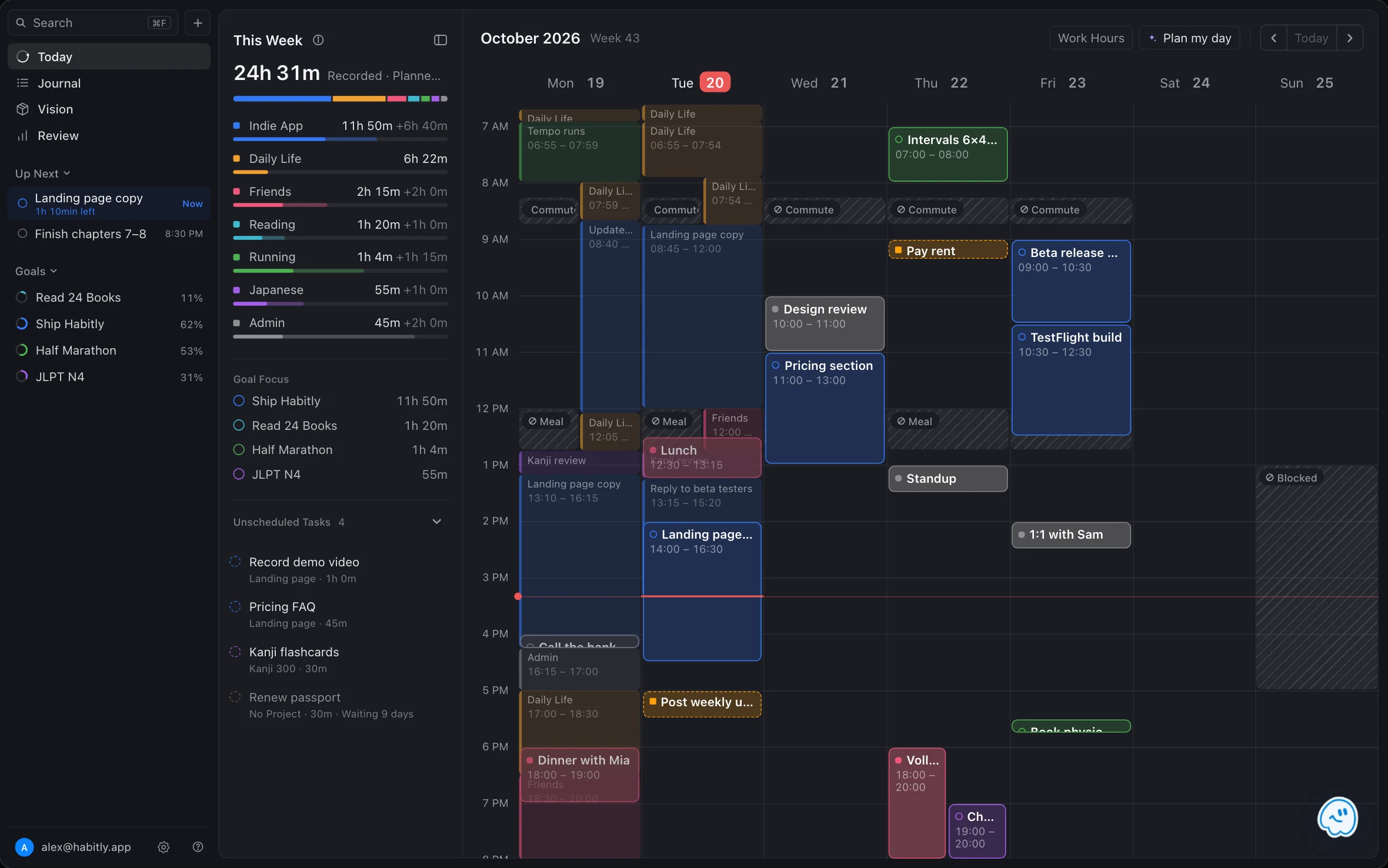
Open Today. The todos you just made wait in the Unscheduled tray. Drag one onto the timeline where it fits, next to your events. If something is off the table, like lunch or a commute, block it out with a time block.
With Flux Pro, Plan my day can place your open tasks for you. It shows every move first, and nothing changes until you apply it.
5. Log as you switch
Each time you start something new, add a line in Journal: what you are starting, and its category or todo. The entry before it ends automatically, so there is no timer to start or stop. If you forget, add the entry later and fix its start time. See Journal entries.
On Mac, the Quick Log shortcut opens a log bar over whatever app you are in. On Apple Watch, you can log from a template in one tap.
6. Look at Review after a few days
After a few days of logging, open Review. Time distribution shows where your hours went by category, and Goal forecasts shows whether your goal is on pace and when it will finish at your current rate. Use what you see to plan the next week.
Next steps
- Read Concepts for how tasks, events, reminders and blocks differ.
- Ask Flux AI to break a goal down or rearrange a day that fell apart.
- Compare Free and Pro to see what Flux Pro adds.
Learn more
- All features: everything FluxTime does, screen by screen.
- What is interstitial journaling?: the habit behind the journal.
Last updated