 FluxTime
Apple Watch
Log a journal entry from your wrist with one tap on a template, or dictate, scribble or type a one-off entry.
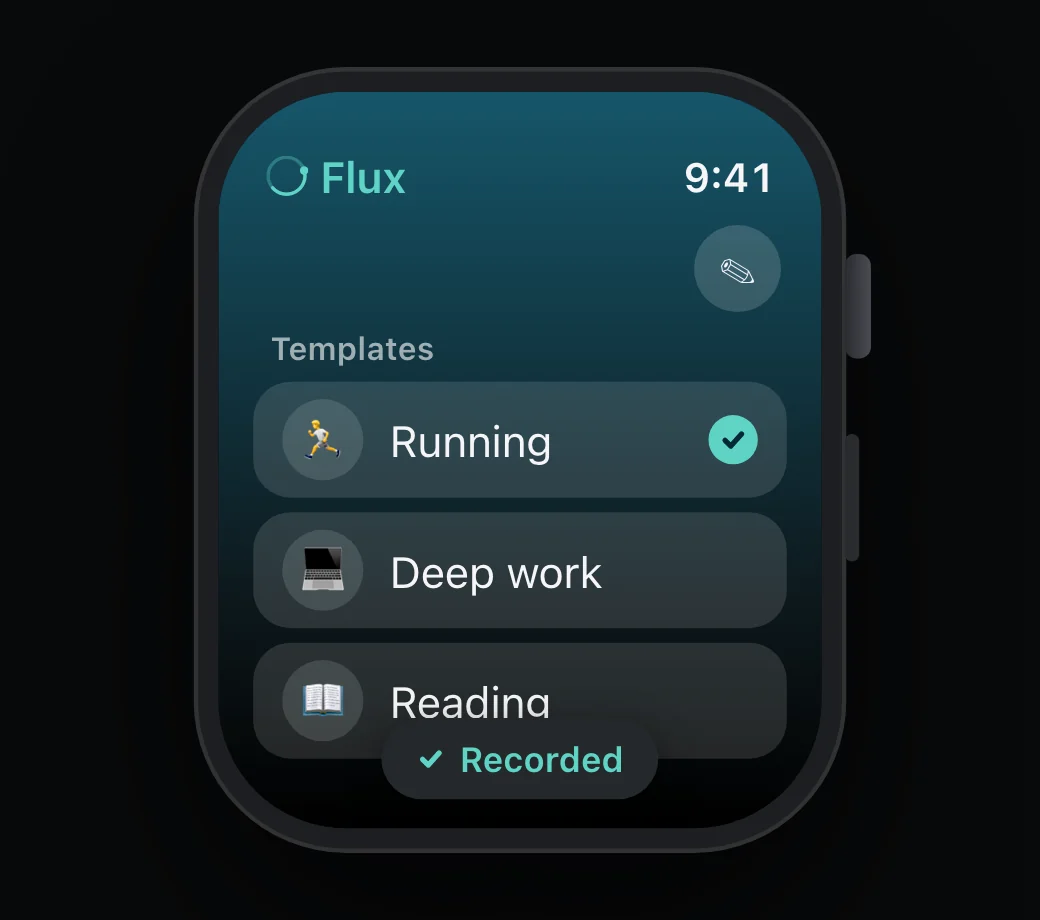
The Apple Watch app is for logging. When your phone is in a bag or your hands are busy, tap a template on your wrist, and the entry lands in your journal with the time you tapped it.
Set up templates on iPhone
Templates are the things you log often, like Deep work, Commute or Gym. You create them on your iPhone, and they appear on the watch.
- On iPhone, open Settings → Integrations → Watch Templates.
- Tap Add New Template.
- Enter a Template Title and, if you like, an Emoji. The preview shows how it will look on the watch.
- Tap Save.
To change or remove a template, open its menu and choose Edit or Delete.
Log from a template
Open FluxTime on the watch and tap a template. The entry is recorded with the time you tapped it, and the entry before it ends, just like adding an entry in Journal.
Write a one-off entry
For anything without a template, tap Write an entry (the pencil), then dictate, use Scribble or type what you are doing.
When your iPhone is out of reach
The watch sends each entry to your iPhone, and shows a status after you log:
| Status | Meaning |
|---|---|
| Sending... | The watch is sending the entry. |
| Sent to iPhone | Your iPhone has it, and it is in your journal. |
| Queued for sync | Your iPhone is out of reach. The entry is kept and sent when it is back. |
| Send failed | The entry could not be sent. Try again. |
From your iPhone, entries reach your other devices through cloud sync.
Add FluxTime to your watch face
FluxTime has a complication. Edit your watch face, choose a complication slot, and pick FluxTime, so logging is always one tap away.
After logging
Entries from the watch arrive with the title you tapped or wrote. Give them a category or link them to a todo later in Journal, so they count in Review and toward your goals.
Learn more
- Time log: logging from your wrist as part of a time log.
Last updated